Database Explorer: From Schema Browser to Full Data Workspace
Database Explorer in DBConvert Streams is a free workspace for browsing databases, files, S3 storage, SQL results, and editable data grids before and after migration or CDC.
Updated for DBConvert Streams 2.x
Database Explorer started as a schema browser with interactive ER diagrams. It now inspects live databases, files, S3 storage, SQL results, and target data before and after migration or sync.
Feature overview: Database Explorer page.
Setup and usage: Database Explorer docs.
Database Explorer in DBConvert Streams is a free workspace for browsing live databases, local files, S3-compatible storage, SQL results, and migration targets from one UI. It is built for the moment when simple schema inspection turns into validation, export, migration, or CDC follow-up.
Why database exploration still matters
Database work rarely starts with a clean plan. The first step is usually messy:
- open the database, check tables and columns,
- look at a few rows,
- find relationships,
- run a quick query,
- confirm the data looks right.
Traditional SQL clients handle browsing and querying well. But real projects span more than one place: PostgreSQL and MySQL tables, CSV exports, JSON logs, Parquet files, S3 buckets. Switching between a database client, a file viewer, an object-storage browser, scripts, and migration tooling slows everything down.
Database Explorer covers the normal client workflow first: browse, inspect, query, edit.
It is free to use, even if you never create a stream. When the work grows into export, migration, or CDC validation, the same context is still there.
What you can inspect
One place for live databases, file-based data, object storage, query results, and target data:
- Databases: schemas, tables, views, columns, keys, indexes, generated DDL, row previews, table metadata.
- Files: row previews and structure for CSV, JSON, JSONL, and Parquet, so data can move both ways: databases to files and files to databases.
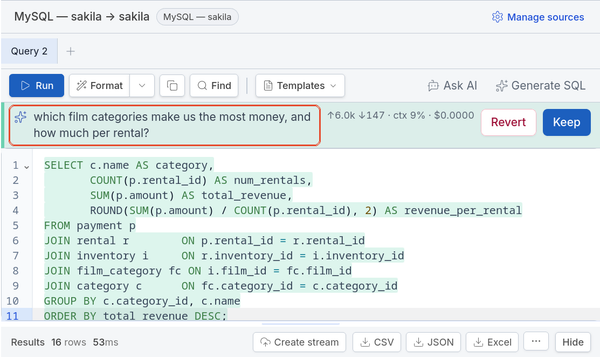
- SQL: query tabs, query history, result sets, and result export through the SQL console, for when the grid view is not enough.
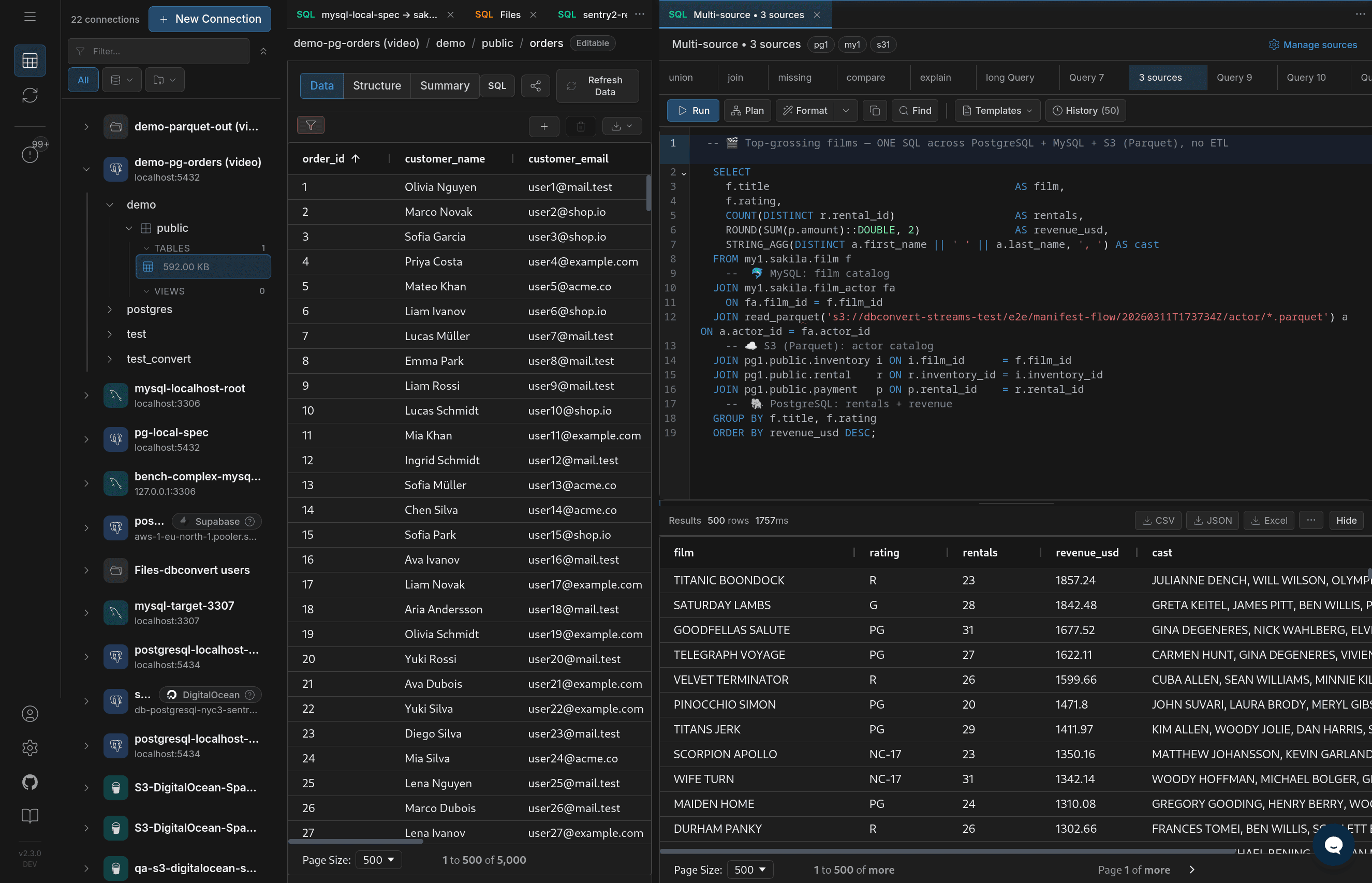
What you can connect to
No account required. Add a connection and start browsing.
- Databases: MySQL, MariaDB 10.2+, PostgreSQL. Managed providers connect as standard endpoints, with no separate integration: Amazon RDS and Aurora, Google Cloud SQL, Azure Database, Neon, Supabase, and other PostgreSQL- or MySQL-compatible services.
- Local files: CSV, JSON, JSONL, Parquet.
- Object storage: S3-compatible storage, including AWS S3, MinIO, DigitalOcean Spaces, and Wasabi.
The same connection you inspect here is the one you later point a migration or CDC stream at. Nothing is re-entered.
Data viewer and editor
Schema tells you how the data is supposed to look. Rows show what is actually there.
The data grid browses rows with pagination, sorting, filtering, column selection, and column autosize. Where supported, it also edits: add rows, change cells inline, review pending changes, and mark records for deletion before saving.
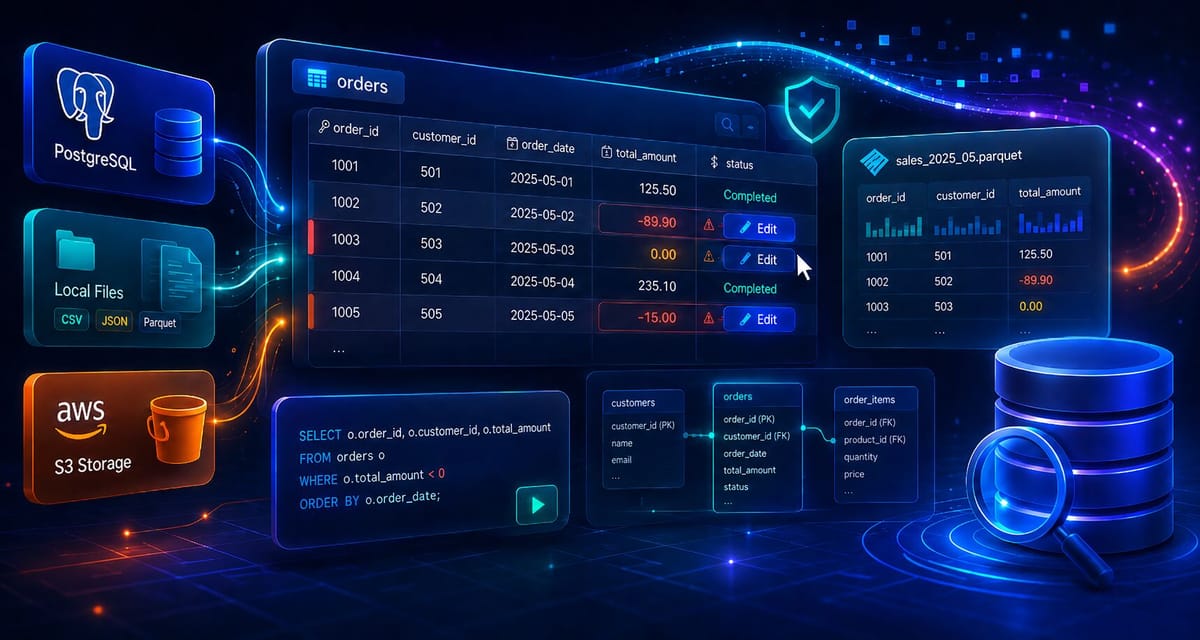
A concrete example. Open a PostgreSQL orders table, hide a couple of noisy columns from the grid, autosize the visible columns, and sort by the amount column. If a few rows clearly show impossible values, such as negative totals, you can fix them directly in the grid and save the changes.
Then open a Parquet file in the right panel, sort its columns, and inspect the exported data without leaving the same workspace. It is a small workflow, but it shows the point: browse, clean up the view, spot bad data, edit where supported, and compare the result with file-based data without jumping through three separate tools.
Open a Parquet, JSONL, or SQLite file locally in your browser before setting up a connection. Your file stays in the browser tab.
Editing PostgreSQL rows and previewing a Parquet file in the same workspace.
Visual schema understanding with ER diagrams
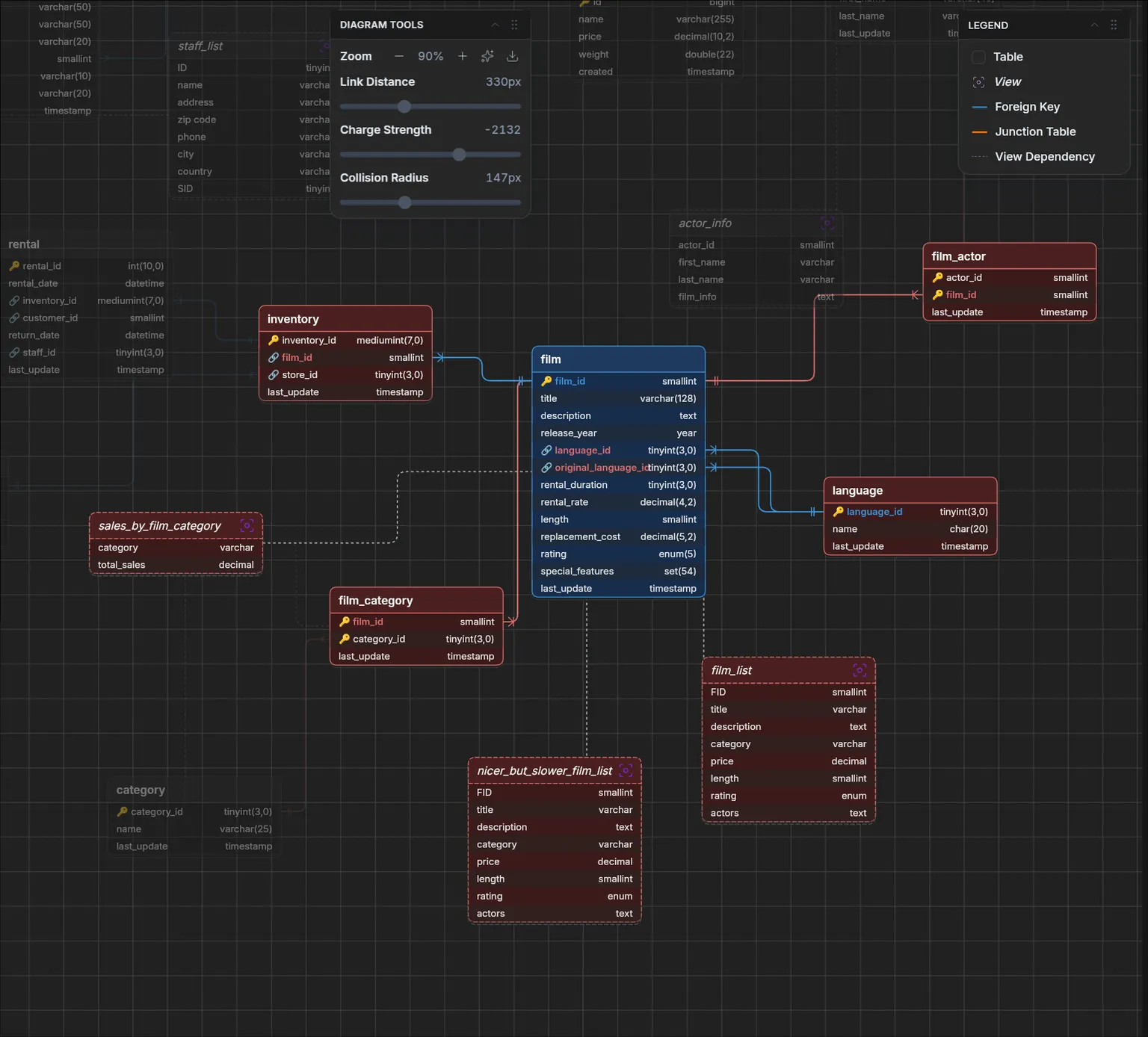
A table list shows you objects. An ER diagram shows how they relate: parent and child tables, foreign keys, central tables. It is still one of the fastest ways to understand an unfamiliar schema before touching the data, and it lets you explain structure without passing raw DDL around.
Files and S3 are part of the same workspace
A lot of database work crosses the line between live databases and files: inspect a PostgreSQL table next to a Parquet export, check JSON before loading it, review CSV in an S3 bucket before creating a stream.
Database Explorer treats files and object storage as first-class data sources, not as import/export leftovers. You can validate contents, check structure, test exports, load file data into a database, or use files as part of a cross-source SQL workflow.
Where Database Explorer ends
Knowing the boundary keeps expectations honest.
Editing is staged locally: inserts, cell edits, and deletes are highlighted and held until you save, so nothing is written until you commit. It works on database tables, database views, and individual CSV, JSON, or Parquet files where editing is supported. Table groups, such as folders of multi-part files, are read-only; open a single file inside the group to edit it.
Database Explorer inspects, queries, and edits, and it is the entry point into moving data. It is not the mover itself. One-time migration and continuous CDC replication are stream features: they need an account and run as evaluation, then paid. The exploration workspace stays free regardless, including reviewing the target after a paid stream has run.
When this matters
This matters when:
- a PostgreSQL table has to be compared with a Parquet export
- JSON or CSV files need to be checked before loading
- an S3 folder has to be inspected before creating a stream
- a migration target needs a quick sanity check
- CDC output needs to be reviewed after changes start flowing
From exploration to action
Exploration is useful on its own. Sometimes it is all you need. Just as often it is the first step before larger work: validation SQL, a one-time migration, or CDC replication you confirm later.
The questions stay the same throughout: What am I looking at? Do I only need to inspect this? What am I moving? Are the rows what I expect? Does the target look right after the run? Once they are answered, the next step stops being a guess.
Where to go next
- Database Explorer page: full feature overview
- Database Explorer docs: setup and usage
- Cross-Database SQL · ER Diagram Tool · Data Migration · CDC Replication
- Compared with clients: vs DBeaver · vs DataGrip · vs TablePlus
Database Explorer is not just where you look at data. It is where a vague database task becomes a decision: inspect, query, edit, export, migrate, or keep syncing.