How to Configure Database Access for DBConvert Streams
Learn how to configure your database access properly for DBConvert Streams deployments — whether on localhost or in the cloud. This guide covers IP whitelisting, firewall rules, and server configuration.
Introduction
When running DBConvert Streams, your app needs permission to connect to your database.
This usually means whitelisting an IP address and configuring the database server to accept remote connections.
Depending on where you install DBConvert Streams, the steps are slightly different.
1. Local Installations (localhost)
If you're running DBConvert Streams directly on your machine (e.g., your laptop, a home server), your database likely already accepts local connections.
✅ In this case, make sure your database allows connections from 127.0.0.1.
For example:
- In PostgreSQL, check your
pg_hba.confto ensure127.0.0.1/32is allowed. - In MySQL, most local installs accept connections via
127.0.0.1by default.
Tip:
Some MySQL clients use UNIX sockets when connecting tolocalhost. If you need TCP/IP, explicitly connect to127.0.0.1.
2. Cloud Deployments
If you deploy DBConvert Streams to a cloud server (e.g., DigitalOcean, AWS, GCP), you must:
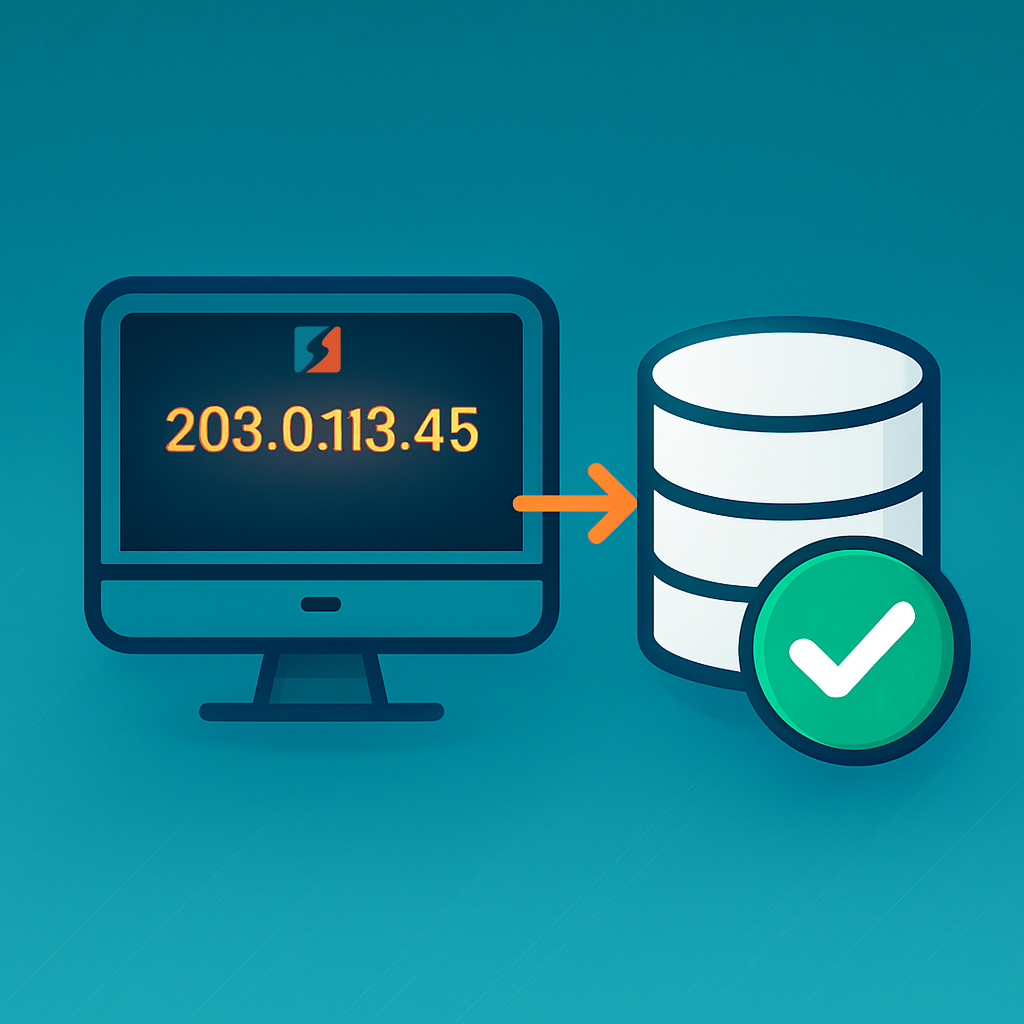
- Find your server’s public IP address (shown inside DBConvert Streams).
- Add that IP to your database’s allowed connections list or firewall settings.
Why?
Most cloud databases block all external connections by default for security reasons.
Whitelisting your server's IP allows DBConvert Streams to connect safely.
3. Common Configuration Areas
Depending on your database and provider, here's where you usually configure access:
- PostgreSQL: Edit
pg_hba.confto allow incoming IP ranges. - MySQL/MariaDB: Adjust user grants and possibly database config.
- Managed Databases (AWS RDS, DigitalOcean DB, etc.): Use their web console to manage allowed IPs and firewall rules.
4. MySQL Servers: bind-address Configuration
If you're connecting to a MySQL or MariaDB server running remotely, you must ensure the database listens for external connections.
By default, MySQL binds only to 127.0.0.1 (local connections only).
To allow remote connections:
- Open your MySQL configuration file:
/etc/mysql/my.cnf
# or
/etc/mysql/mysql.conf.d/mysqld.cnf
- Find the
[mysqld]section. - Update or add the following:
[mysqld]
bind-address = <your-server-ip-address>
Example for private network:
bind-address = 192.168.1.100
Example for cloud server:
bind-address = 203.0.113.45
- Restart the MySQL service:
sudo systemctl restart mysql
Security Warning:
Avoid settingbind-address = 0.0.0.0unless you have strong firewall protections.
Exposing MySQL publicly without restriction is dangerous.
4.2 Database Access Control Lists (ACLs)
In addition to configuring your server's network settings, you must ensure your database accepts connections from the correct IP addresses at the application level.
This is known as configuring Access Control Lists (ACLs).
PostgreSQL:
Edit the pg_hba.conf file (usually in /etc/postgresql/<version>/main/pg_hba.conf) and add a rule:
host all all <your-server-ip>/32 md5
MySQL / MariaDB:
Modify user privileges to allow specific IPs:
GRANT ALL PRIVILEGES ON your_database.* TO 'your_user'@'<your-server-ip>' IDENTIFIED BY 'your_password';
FLUSH PRIVILEGES;
Tip:
Avoid using'%'(any IP) unless absolutely necessary.
Always prefer whitelisting specific IP addresses for better security.
5. What IP Should You Whitelist?
| Scenario | IP to Whitelist |
|---|---|
| Local install | 127.0.0.1 |
| Cloud server | Public IP of your cloud server |
Checklist:
- ✅ Whitelist the correct IP
- ✅ Configure MySQL/PostgreSQL access settings (ACLs)
- ✅ Open firewall ports (3306 for MySQL, 5432 for PostgreSQL) carefully
- ✅ Use strong passwords and SSL if possible
Common Database Access Misconfigurations to Avoid
Even after following setup steps, some common mistakes can block successful database connections:
- Forgetting to restart the database service after changing
bind-addressorpg_hba.conf - Whitelisting
0.0.0.0/0(allowing the whole internet) instead of specific IP addresses - Only opening firewall ports but forgetting to allow IP addresses inside the database configuration
- Using
localhostinstead of your public IP in connection strings when connecting remotely - Granting database access to 'user'@'localhost' instead of 'user'@''
- Skipping SSL/TLS encryption when exposing database ports over the public internet
Connection Troubleshooting Flow
If you encounter connection errors, walk through these quick checks:
- Firewall open?
- ❌ No → Open firewall for the database port (e.g., 3306 or 5432)
- Database bind-address correct?
- ❌ No → Update
bind-addressto your server IP and restart the database
- ❌ No → Update
- Database grants for IP correct?
- ❌ No → Update user permissions to allow your server's IP
- ✅ Connected!
Tip: It's usually a firewall or bind-address misconfiguration in 80% of cases.
Conclusion
Whitelisting the correct IP address and properly configuring your database server is critical for a successful DBConvert Streams connection.
If you're unsure which IP to whitelist, or encounter connection errors, first double-check:
- Your database firewall rules
- Your
bind-addresssettings - Your user privileges (
GRANTorpg_hba.conf)
Secure your database carefully — exposing it too broadly is a major security risk!