ChatGPT and Your SQL Database: Stop Pasting Schemas, Connect Them Instead
Pasting schemas into ChatGPT works for one-off queries. For real database work, connect the AI read-only to your database via MCP or in-app AI Chat.
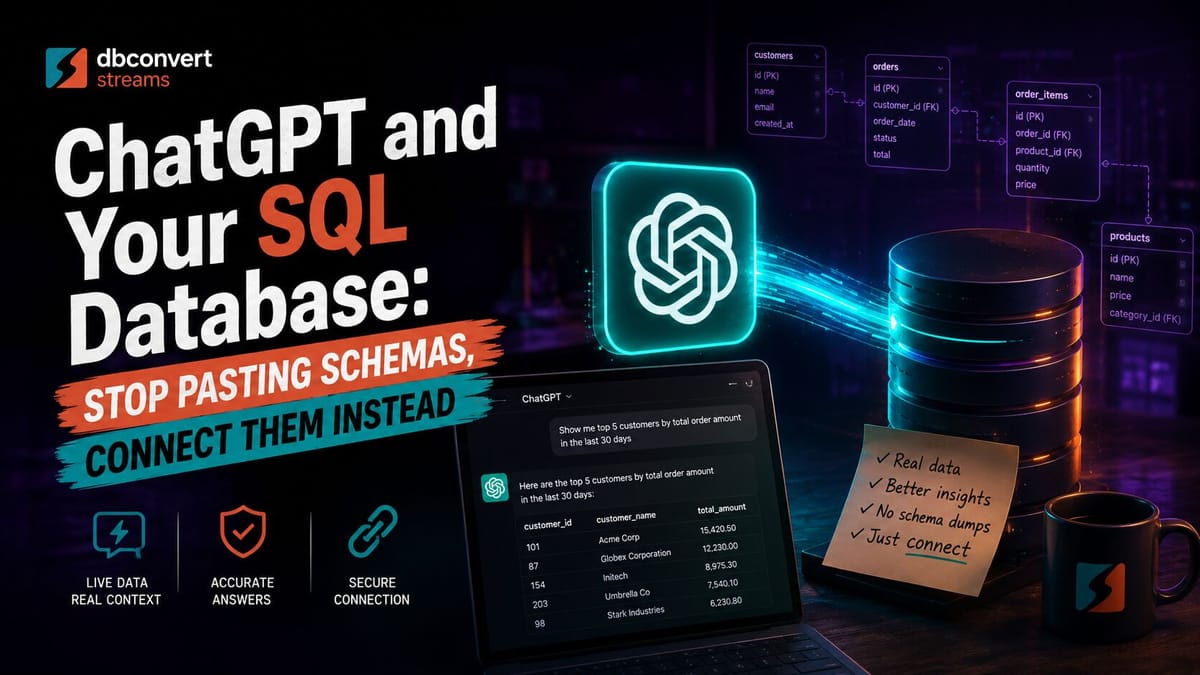
In 2024 this article said: describe your task to ChatGPT, paste your schema, and let it draft the SQL. That still works for a one-off query. But if you do database work daily, the pasting workflow is now the slow way. AI assistants can hold a live, read-only view of your actual database — schema, data, and running processes — and answer from evidence instead of from whatever you remembered to paste.
So this is the 2026 rewrite of this post. Same question as always — how do you actually use ChatGPT-class AI for SQL work — with answers that match how the tools work now.
Where pasting into ChatGPT still wins
Be honest about the baseline: for a syntax question, a quick one-off query on a schema you can paste whole, or generating test data, a plain ChatGPT, Claude, or Copilot window is fine. Nothing below is worth setting up for that.
The pasted workflow breaks in three places:
- Your paste goes stale. The schema in the chat is a copy. One migration later, the AI is confidently writing SQL against columns that no longer exist.
- Errors arrive without context. To debug a failed query you copy the statement, the exact database error, and the relevant tables — every time.
- No way to check the answer. The AI can't run
SELECT count(*)to verify its own suggestion, so you become the execution engine.
The fix for all three is the same: give the assistant a bounded, read-only connection to the real database. There are two practical ways to do it in DBConvert Streams, and the AI Chat page has a full side-by-side of standalone chat vs connected chat.
Option 1: connect the AI client you already use (MCP)
DBConvert Streams ships an MCP server — Model Context Protocol, the open standard AI clients use to reach external tools. Connect Claude Code, Claude Desktop, Cursor, VS Code Copilot, or Codex to your own Streams installation. Your client can then inspect schemas, run bounded SELECTs, and read stream state — but it cannot write to your database, ever.
Two ways to connect, both to your workspace (this is not a shared AI endpoint on our side):
- Desktop: open AI Clients in DBConvert Streams and click Connect — the app registers its bundled MCP server in your selected client. Setup guide
- Docker / server: point your client at
https://<your-streams-host>/mcpand authenticate with your API key and Install ID.
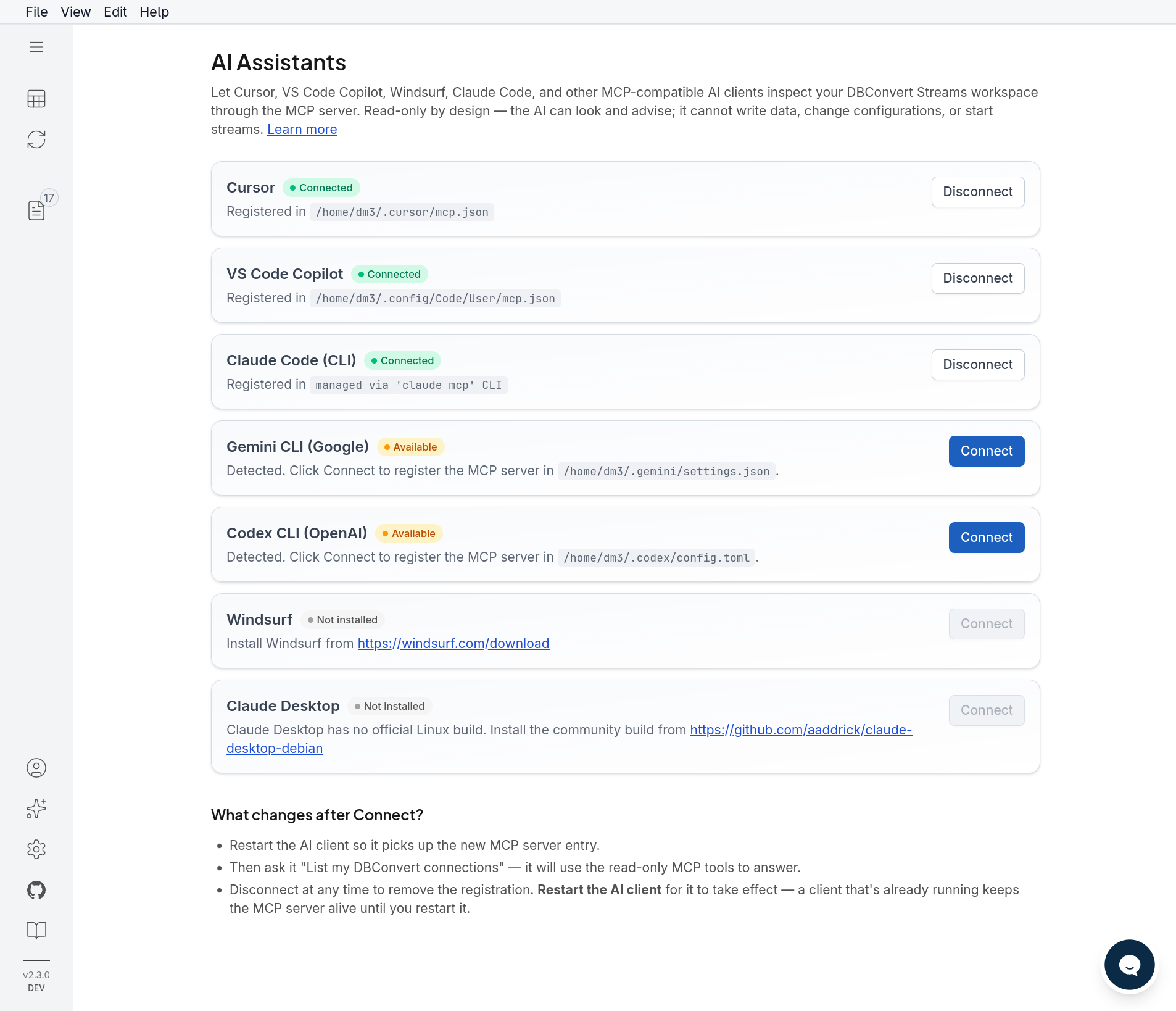
Here is what that looks like on real work. Each of these is an actual prompt against a live workspace:
- "My MySQL → PostgreSQL CDC stream stopped overnight. Check status and recent errors, and tell me what to fix." — the AI pulls status, stats and recent errors together. In our live run it came back with the exact cause:
Error 1049: Unknown database 'target'— the CDC source pointed at a database that didn't exist. - "Compare
orderson my Postgres source with the MySQL target. What will break, and what is only a warning?" — schema comparison before a big load, instead of eyeballing two consoles. - "Is
customers.parquetin S3 still in sync with the livecustomerstable?" — one federated query across a database and object storage, no staging table. - In Cursor or VS Code: "Write the migration to add this column, matching the types already in the production
orderstable" — the assistant reads real columns, types and indexes instead of inferring them from stale code.
Option 2: AI chat that opens inside the database tool
If you'd rather not configure an external client, the same capability is built into DBConvert Streams as AI Chat. You open it from a table, a stream, a file, or the SQL editor — and it starts already scoped to the thing you're looking at. No pasting.
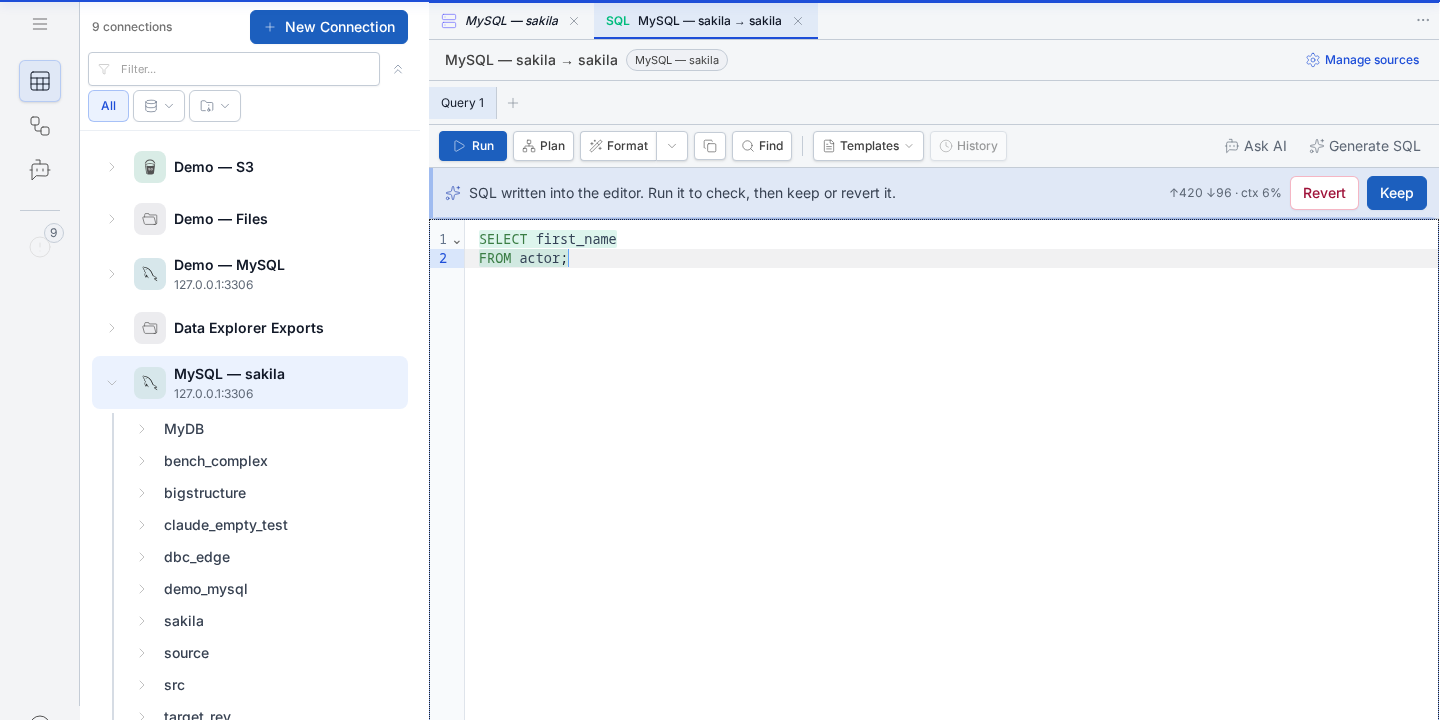
Generate SQL. Describe the result in plain English; the draft is written into the SQL editor against the database you selected, and nothing is final until you press Keep. How it works
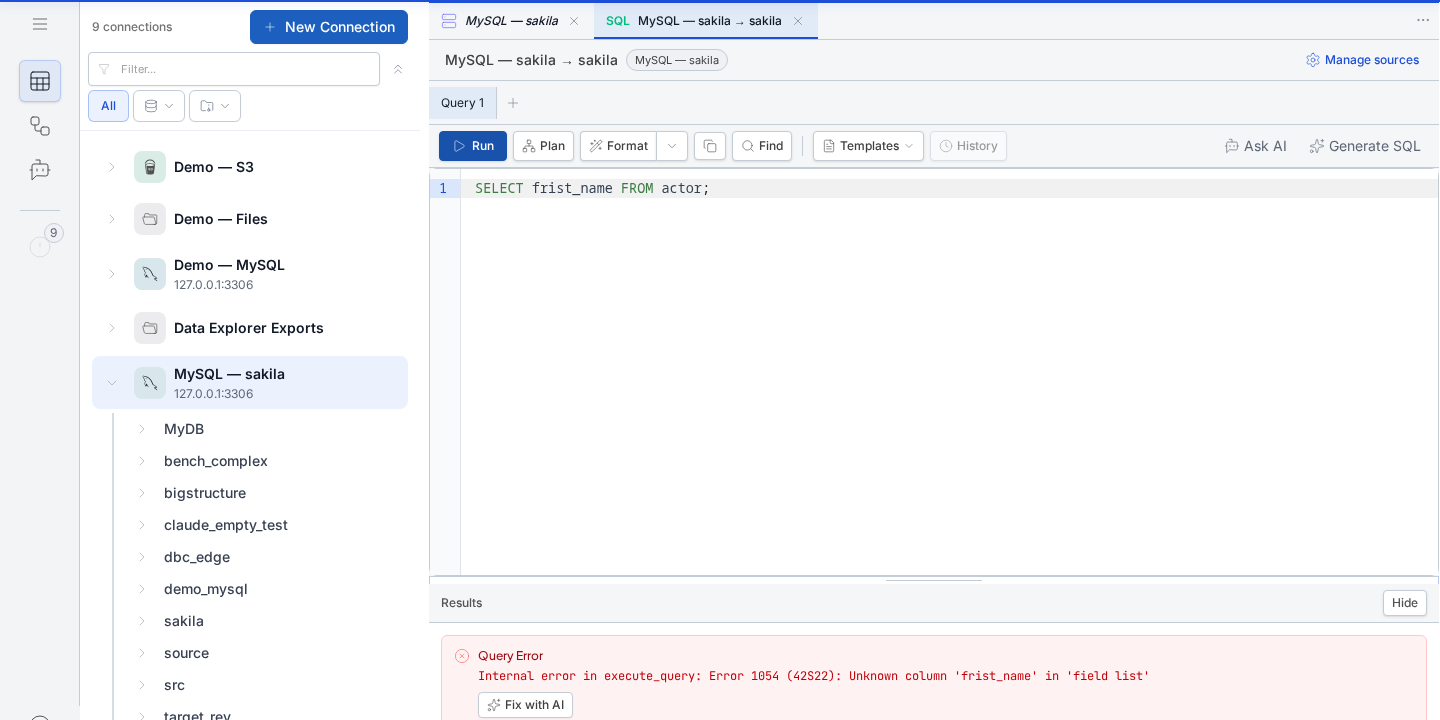
Fix a failed query. Here a typo — frist_name — fails with MySQL Error 1054: Unknown column. The error pane offers Fix with AI; one click later the corrected statement is back in the editor with an explicit "Run it to check, then keep or revert it" step. How it works
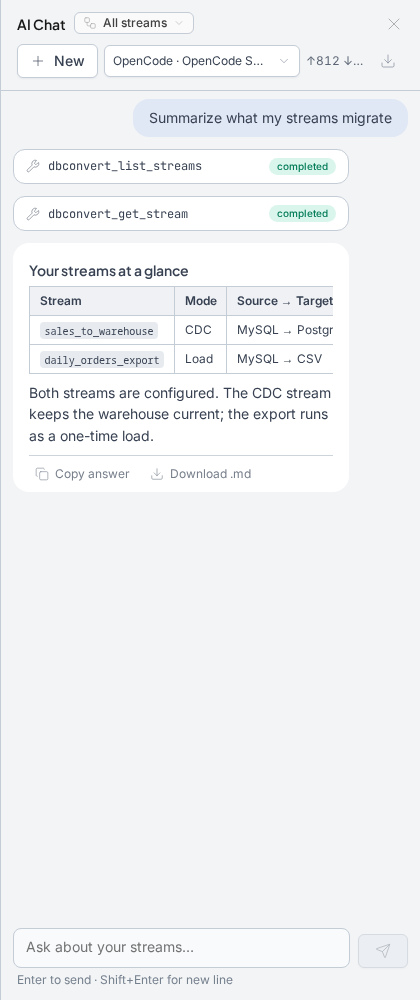
Ask about live state. Below, the question is "Summarize what my streams migrate". The AI calls the workspace tools — list_streams, get_stream — and answers from the actual configuration: a CDC stream keeping a PostgreSQL warehouse current, and a one-time MySQL → CSV export.
AI Chat runs on the model account you already have: set up one agent once — Claude Code, Codex, Copilot CLI, or OpenCode — and tool activity and cost stay visible while it works.
One thing that surprised us: you don't need a top-tier model for this. We tested the everyday workflows — exploring a schema, asking for numbers, checking a stream — with a smaller, lower-cost model and got useful results. The examples page shows real prompts and real answers, numbers and all.
The 2024 list, revisited
The original ten "ways ChatGPT changes SQL practice" don't disappear — they just stop being copy-paste rituals:
| 2024: paste it into ChatGPT | 2026: connected version |
|---|---|
| Debugging SQL errors | Fix a failed query — error and statement pre-attached |
| Schema design assistance | Ask against the real schema; visualize with the ER diagram tool |
| Generating test data | Still a plain-ChatGPT job — paste and go |
| Migration planning | Schema comparison via MCP before the load, CDC for the move itself |
| SQL reports, complex joins, dynamic SQL | Generate SQL scoped to the selected database |
| Query explanation | Ask in chat with the query open; check the query plan it references |
| Indexing recommendations | Grounded in actual columns and indexes, not a pasted approximation |
| Best practices / standards | Still generic advice — any chat window does this |
What about safety?
The rule that makes all of this usable on databases you care about: the connection is read-only by design. The MCP server and AI Chat accept only SELECT and WITH … SELECT statements — no writes, no DDL, no connection changes. You bring your own model account, and tool calls are visible as they happen. Details: Safety & Privacy.
If you want the reasoning behind that design — why read-only is the default, why narrow tools beat one clever query tool, why every request is scoped — we wrote it up from the builder's side: What a good database MCP server gets right.
Try it on your own database
DBConvert Streams is a database migration and CDC replication tool with the Data Explorer, AI Chat and MCP server built in.
Install it, connect a database, and ask your first question — the 1:10 video shows what to expect.