Azure Database Connection Guide
Use this page when your source or target is hosted in Azure Database for MySQL or Azure Database for PostgreSQL.
This guide focuses on the base connectivity steps that DBConvert Streams needs:
- firewall and network access
- server endpoint and credentials
- TLS/SSL requirements
- the extra PostgreSQL setting needed before CDC setup
For current workflow boundaries, see the product introduction page.
Base setup
- Sign in to the Azure Portal.
- Open your MySQL or PostgreSQL server resource.
- Confirm the server endpoint, port, and allowed network path from the DBConvert Streams deployment.
- Confirm which workflow you want: Load only, or PostgreSQL CDC source.
Network access
- Open the server Networking section.
- Add the public IP address of the DBConvert Streams deployment, or the appropriate IP range if your environment requires it.
- Save the firewall rule.
- Confirm the server is reachable on:
3306for MySQL5432for PostgreSQL
TLS/SSL configuration
TLS/SSL is typically enforced on Azure-managed databases by default.
- Download the Azure CA certificate from Microsoft's documentation for the selected service.
- In DBConvert Streams, enable SSL/TLS for the connection.
- Use a verification mode that matches your certificate setup.
Use SSL Configuration for the general certificate workflow.
Do not disable secure transport unless you have a specific non-production reason and understand the tradeoff.
Connection setup in DBConvert Streams
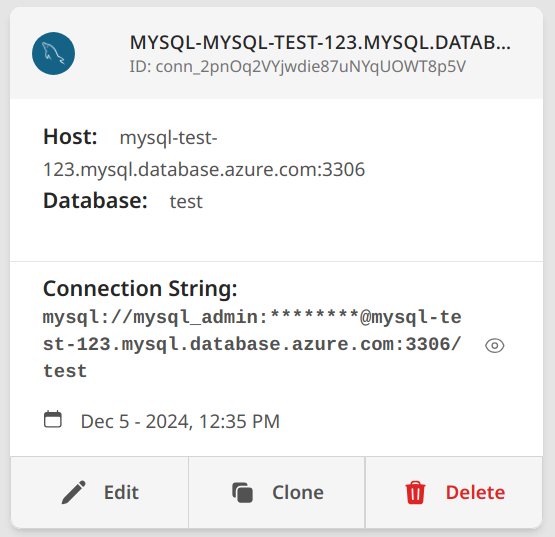
Typical MySQL fields:
- host:
<servername>.mysql.database.azure.com - port:
3306 - username
- password
- database
- SSL/TLS settings
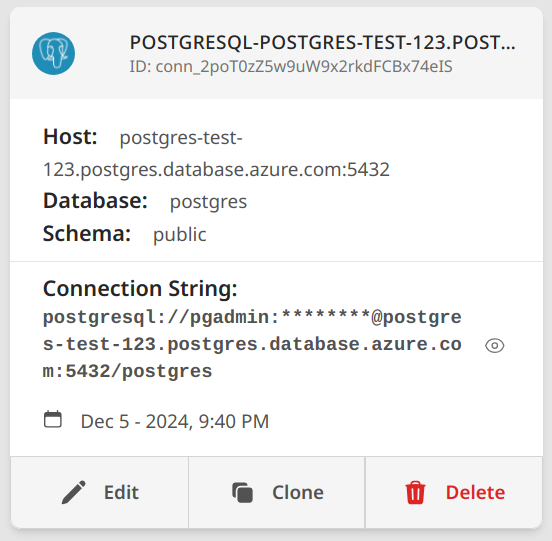
Typical PostgreSQL fields:
- host:
<servername>.postgres.database.azure.com - port:
5432 - username
- password
- database
- optional schema scope
- SSL/TLS settings
Use:
- MySQL Server Configuration for server-level MySQL guidance
- PostgreSQL Server Configuration for server-level PostgreSQL guidance
PostgreSQL CDC preparation
If Azure PostgreSQL is the CDC source, base connectivity is not enough.
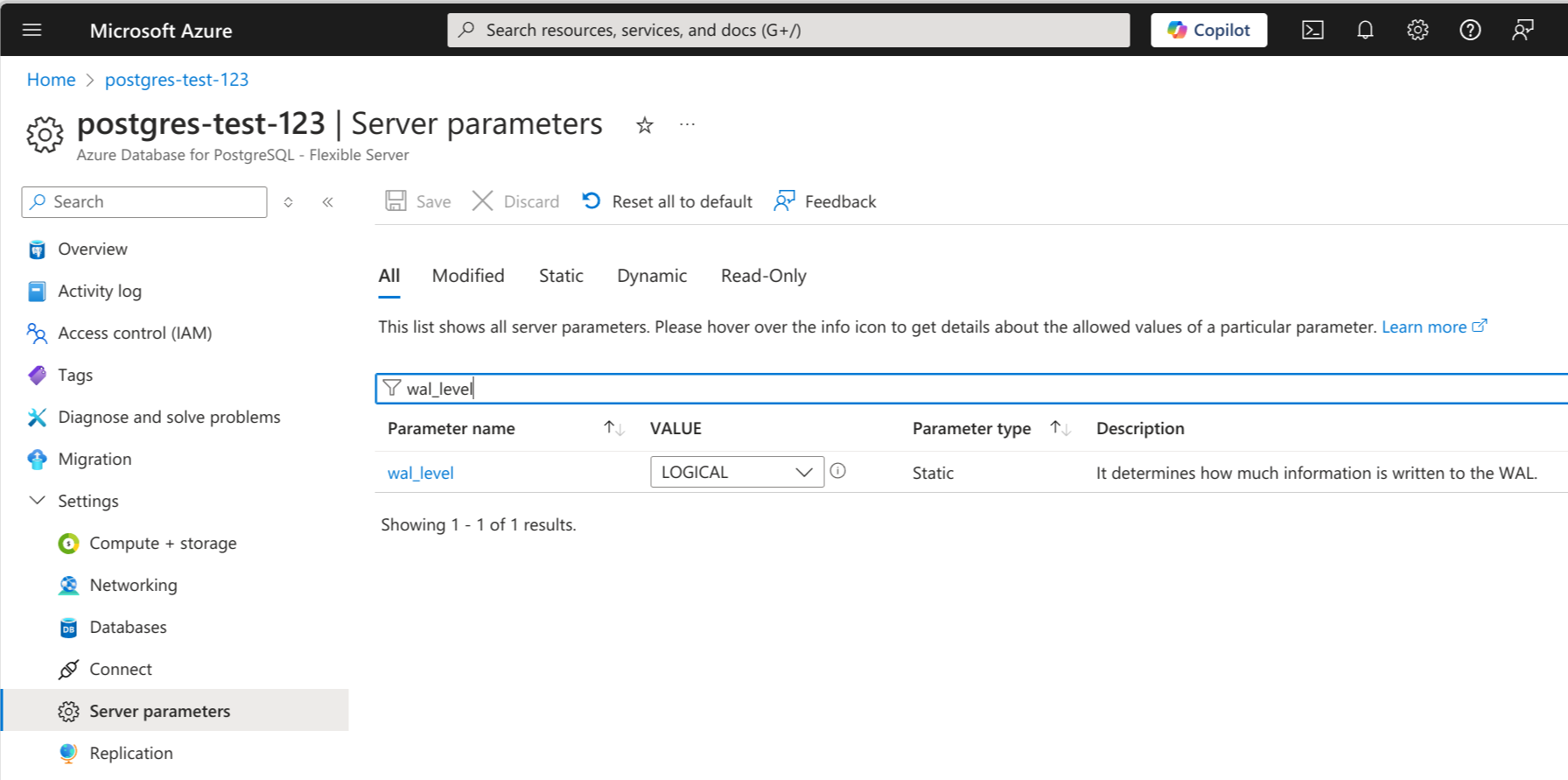
- Open Server parameters in Azure Portal.
- Confirm your deployment uses Azure Database for PostgreSQL — Flexible Server, which supports logical replication. Single Server deployments have limited or no support for
wal_level = logical. - Set
wal_leveltological. - Restart the server when Azure prompts for it.
- Then complete the remaining steps in PostgreSQL CDC Source Configuration.
After restart, verify:
SELECT name, setting
FROM pg_settings
WHERE name IN (
  'wal_level',
  'max_replication_slots',
  'max_wal_senders'
);
Validation checklist
- Test the connection from the Data Explorer sidebar (right-click → Test connection) or from the connection editor. If TLS fails, verify the Azure CA certificate is uploaded and the SSL mode matches the server enforcement setting.
- Open the connection in Data Explorer to confirm visibility.
- For PostgreSQL CDC, confirm the deployment is Flexible Server and run
SHOW wal_level— it must returnlogical. Single Server deployments may not support this. - For MySQL, verify the
@servernamesuffix is included in the username if Azure requires it (e.g.user@servername).