Google Cloud SQL Connection Guide
Use this page when your source or target is hosted in Google Cloud SQL.
This guide focuses on the public setup that DBConvert Streams needs:
- network reachability
- connection parameters
- SSL/TLS considerations
- the extra flag required for PostgreSQL CDC
For current source, target, and mode boundaries, see the product introduction page.
Supported workflows in this docs set
This page covers Google Cloud SQL instances used through:
- a MySQL connection
- a PostgreSQL connection
- PostgreSQL CDC source setup after the required Cloud SQL flag is enabled
It does not document Cloud SQL Proxy-specific connection flows. The public docs assume direct network access to the instance endpoint.
Base setup
- Sign in to the Google Cloud Console.
- Open your Cloud SQL instance.
- Confirm the engine type: MySQL or PostgreSQL.
- Confirm the instance has a public or otherwise reachable network path from the DBConvert Streams deployment.

Network configuration
Use the instance IP address that your deployment can reach directly.
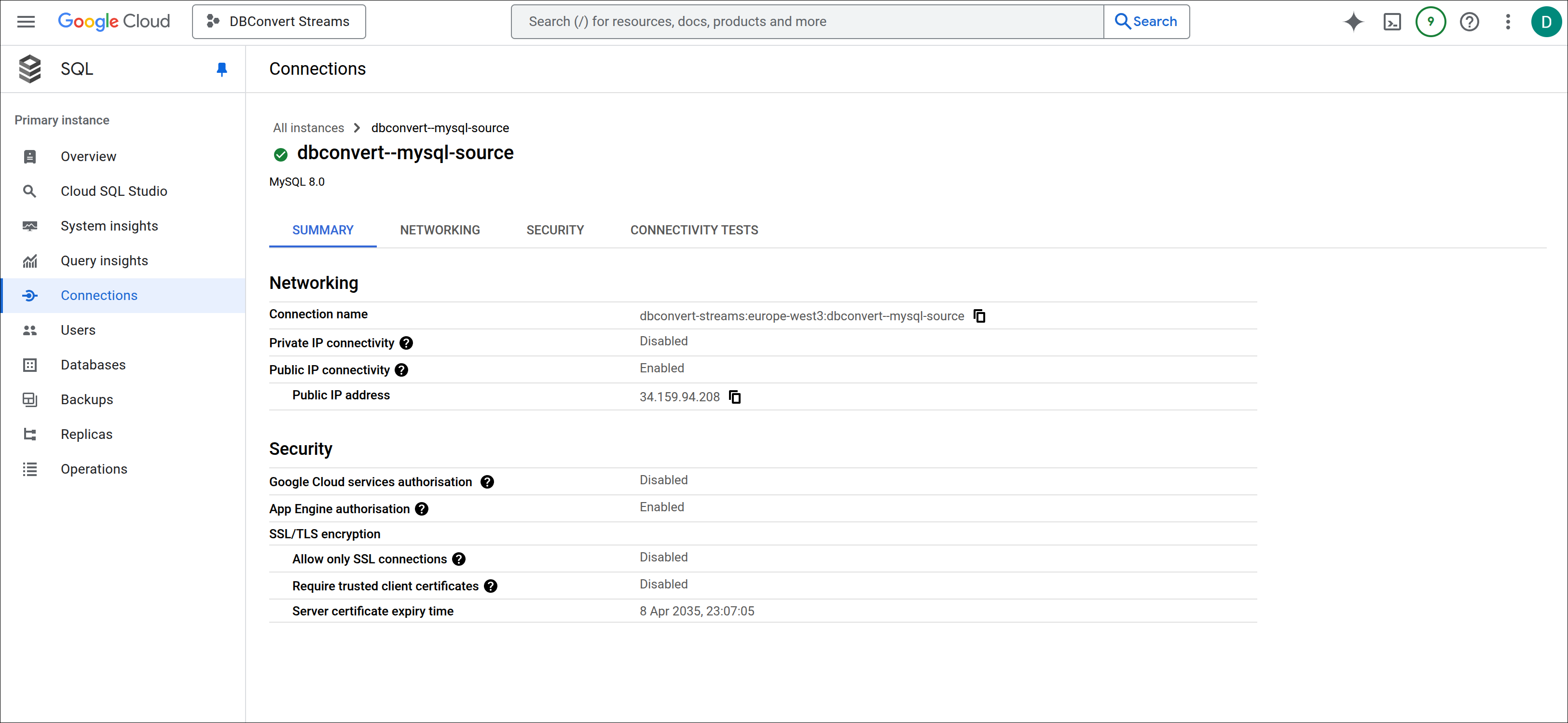
- Open the instance Summary tab and note the public IP.
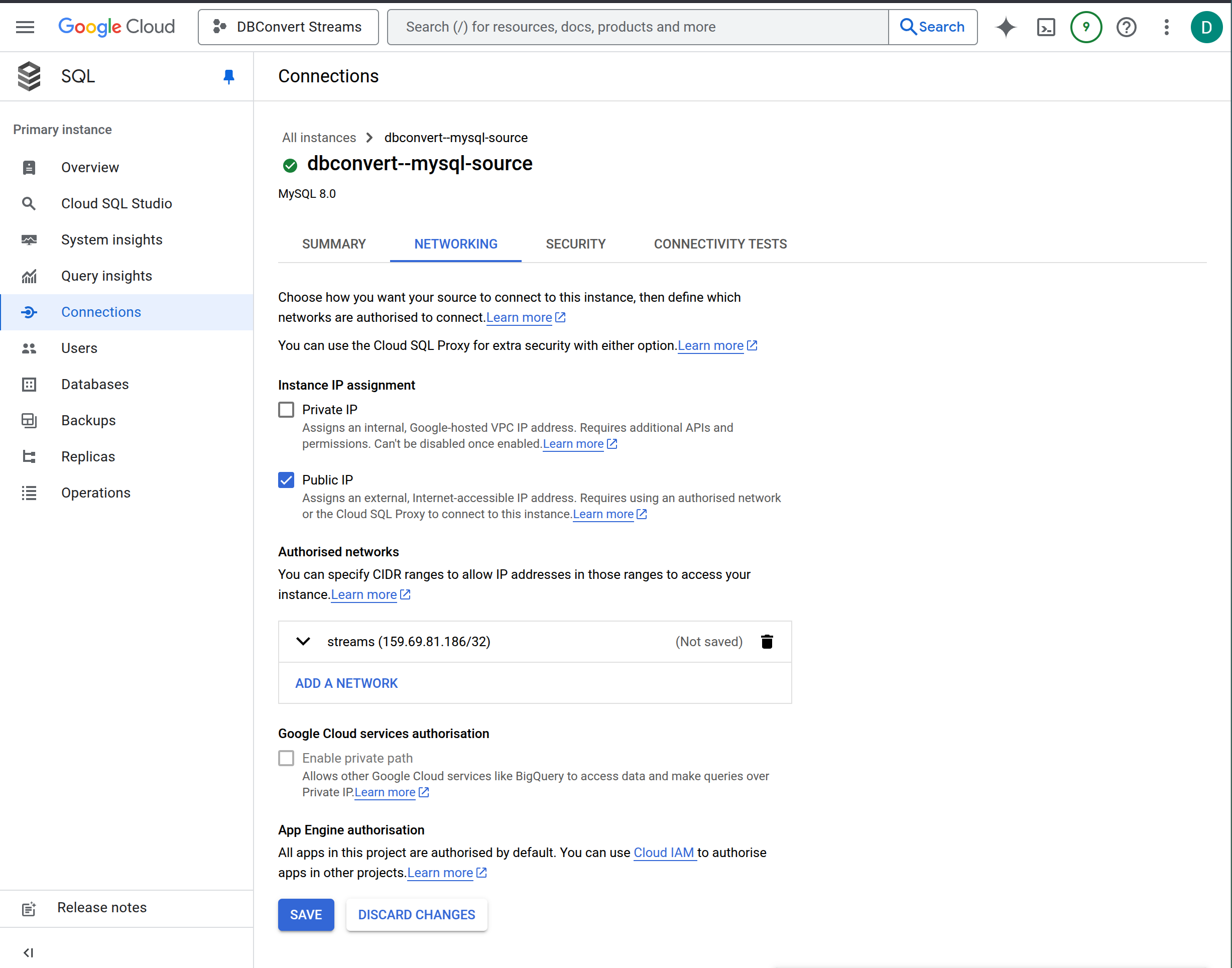
- Open Networking.
- Confirm that the instance is allowed to accept traffic from the DBConvert Streams host.
- Add an authorized network entry for the deployment IP if needed.
Connection configuration
Use the instance IP address or host that your DBConvert Streams deployment can reach directly. Do not use the Cloud SQL instance connection name unless you are deliberately routing through Cloud SQL Proxy, which is outside this public guide.
Typical fields:
- host: the Cloud SQL public IP or reachable hostname
- port:
3306for MySQL,5432for PostgreSQL - username
- password
- database
- SSL/TLS settings if required by your policy
Use:
- MySQL Server Configuration for MySQL connection behavior
- PostgreSQL Server Configuration for PostgreSQL connection behavior
SSL configuration
Use SSL/TLS whenever your environment requires encrypted transport.
- Enable or confirm SSL on the Cloud SQL side.
- Configure the matching SSL mode in DBConvert Streams.
- Upload CA or client certificates where required by the selected engine and policy.
Use SSL Configuration for the certificate flow.
PostgreSQL CDC in Cloud SQL
If you use Cloud SQL PostgreSQL as a CDC source, you must enable logical decoding first.
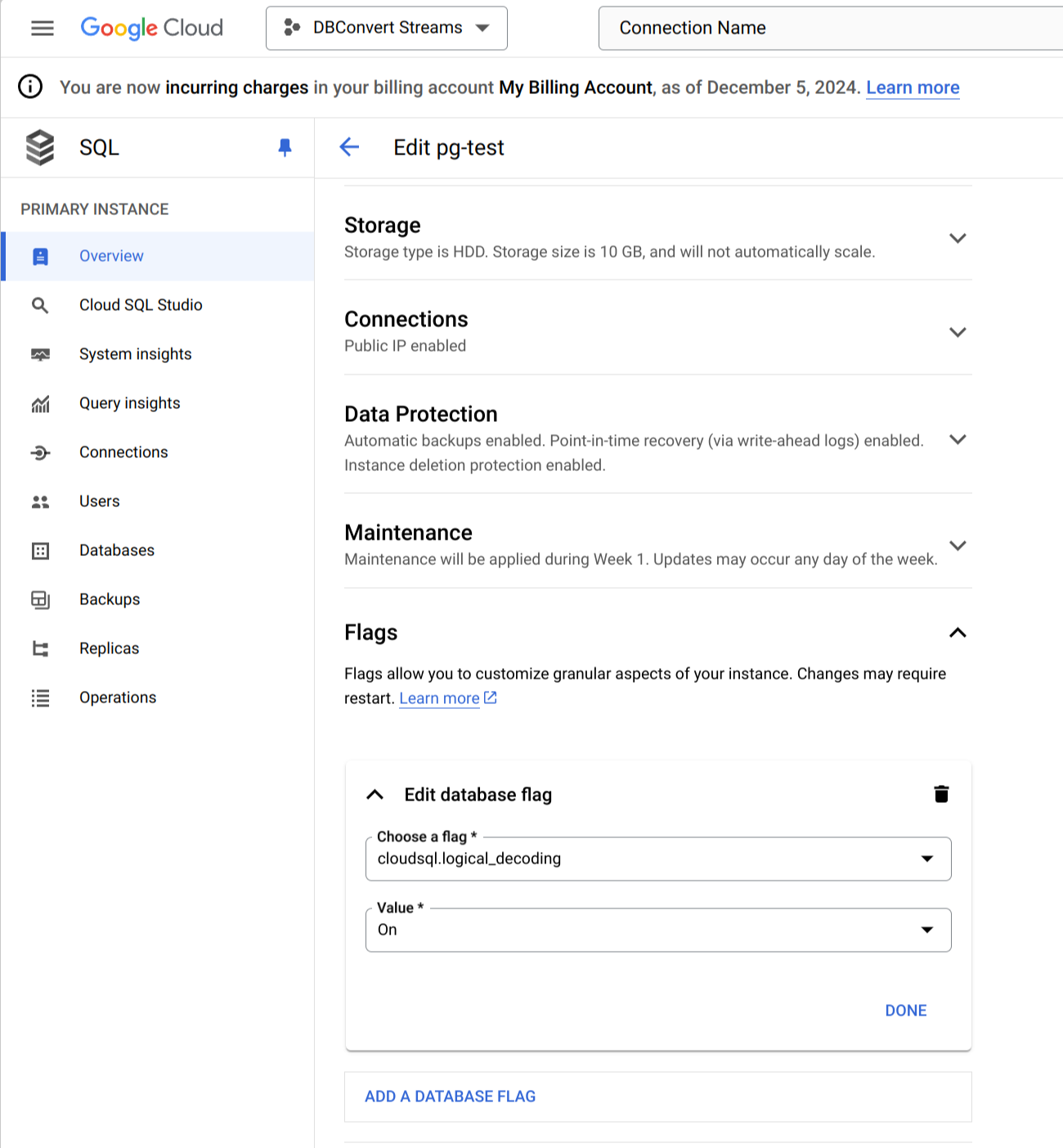
- Edit the instance.
- Open the database flags section.
- Add
cloudsql.logical_decoding = on. - Save the change and wait for the instance to restart or apply the update.
- Then follow PostgreSQL CDC Source Configuration for privileges and stream setup.
Validation checklist
- Test the connection from the Data Explorer sidebar (right-click → Test connection) or from the connection editor. If it fails, verify the deployment IP is listed under Authorized networks in the Cloud SQL console.
- Open the instance in Data Explorer to verify visibility.
- For PostgreSQL CDC, confirm
cloudsql.logical_decodingis set toonin the instance flags. RunSHOW wal_leveland verify it returnslogical. - If using SSL, confirm the connection succeeds with the selected verification mode — Cloud SQL may reject connections that skip certificate validation.