Using AI Chat
Once you have an agent set up, this is the day-to-day: how to point the chat at the right thing, move between chats, and read what it's costing.
Scope — what the chat is about
Every chat has a scope, shown as a labelled chip next to "AI Chat" in the header. The scope tells the assistant what to answer about, so it doesn't have to enumerate your whole workspace first.
You set it by where you open the chat from:
- The AI Chat sidebar button opens a workspace chat — All streams (from the Streams page) or All connections (from Data Explorer).
- Ask AI buttons across the app open a chat already scoped to a table or view, a file, a connection or database, a SQL console (including a multi-source federated one), or a stream config.
The chip always names the current scope, so you can tell at a glance whether you're asking about this config or all streams.
Switch scope
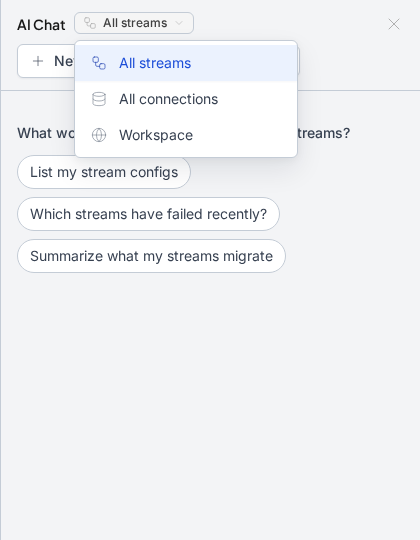
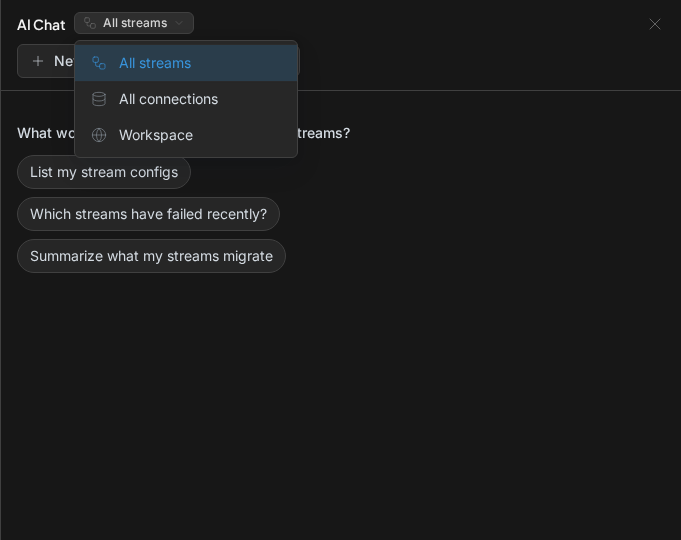
The scope chip is also a switcher — click it to jump between chats without hunting for the right Ask AI button:
- All streams, All connections, Workspace — the broad scopes, always available.
- Recent — chats you've opened lately, so you can hop back to a specific config or database.
Switching is safe: each scope keeps its own conversation, so moving between them loses nothing.
Suggestions
A fresh chat shows a few one-click suggestions tuned to its scope — e.g. "List my stream configs", "Find tables without primary keys", "Show the first rows" for a file, or "Compare a table with a file" in a multi-source console. They're starting points; click one, or just type your own question.
In a SQL console with a query in the editor, the suggestions become query-specific — Explain current SQL, Optimize this query, Suggest indexes for this query — and attach the editor's query for you.
Watch the work
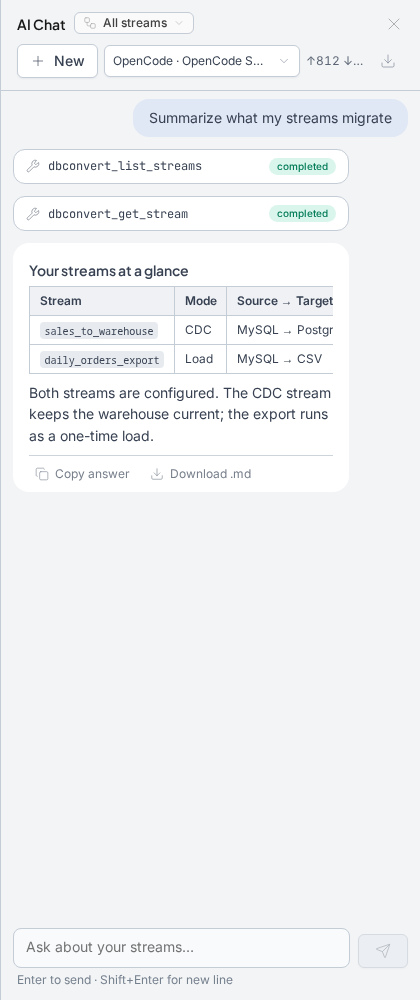
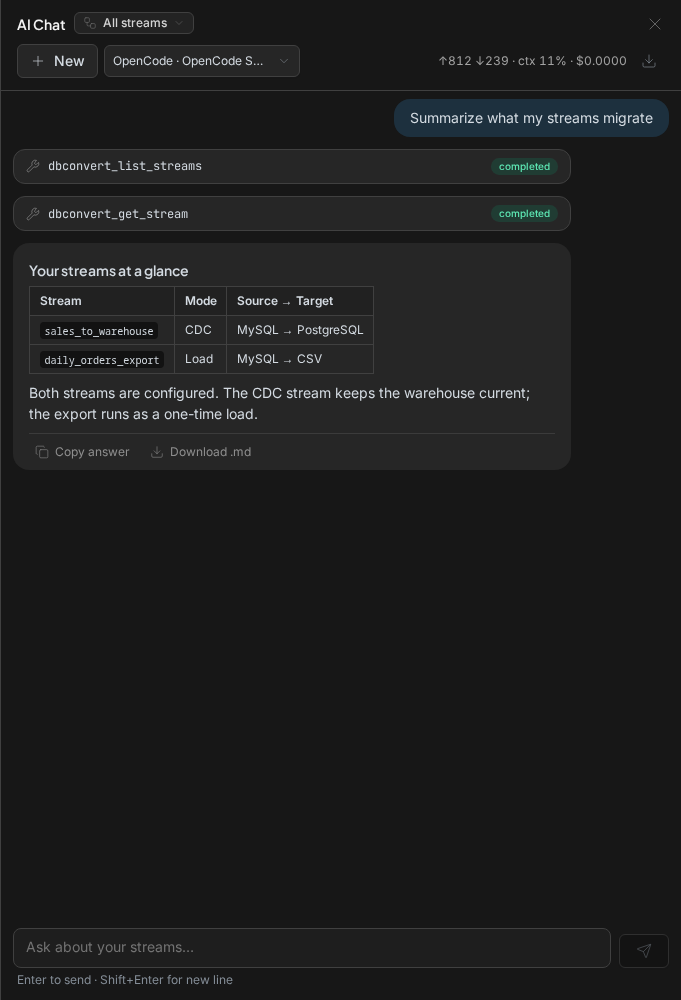
While answering, the chat shows a card for every DBConvert tool the agent calls. The card names the tool and shows its status:
- completed — the tool returned its result to the agent.
- in progress or pending — the agent is still working.
- failed — that one attempt did not work; the agent may still recover and give a useful answer. Expand Details on a failed card when it is relevant.
Click Stop beside the composer to cancel a turn that is taking too long.
Sessions and memory
- New (header) starts a fresh conversation in the current scope.
- Each scope is its own thread and its history persists while the app is open, so switching away and back — or closing and reopening the panel — resumes right where you left off, with the agent still remembering the conversation.
- To keep things light, only a few agents stay live at once; older chats are put to sleep and reattached with their memory when you return. (GitHub Copilot CLI is the exception — it can't reattach, so returning to a slept Copilot chat starts a fresh session; the transcript is still on screen.)
Usage and cost
The header badge shows this chat's usage — for example ↑812 ↓239 · ctx 11% · $0.0000:
- ↑ input tokens (sent to the model) and ↓ output tokens (its reply) for the latest turn.
- ctx N% — how full the model's context window is; it climbs as the conversation grows.
- $ — the session's running cost. It reads
$0.0000on a free model; paid providers show the real amount.
Hover the badge for exact numbers. Costs are billed by your provider, not DBConvert.
Daily questions
A chat about a live database needs a free DBConvert account, and it gets 5 questions a day. The count resets at midnight UTC and is shared by all your installs. Chats about files and S3 are not counted, and PRO removes the limit.
When the questions run out, That is today's free AI questions shows when they come back.
Reuse an answer
Hover an AI response to Copy answer or Download .md. A runnable SQL block has its own Copy action and, when the chat belongs to the matching SQL console, Insert into editor. Inserting replaces the editor's current query; review it before you run it.
Agent settings
The provider and model chip opens the selected agent's settings. The available options differ by provider. AI Chat only lets an agent use DBConvert's read-only tools — it does not grant the agent's own shell, filesystem, or code-editing tools.
Export a conversation
Click the ↓ icon in the header to Copy as Markdown or Download .md — handy for saving a good analysis or pasting a transcript into an issue.
Next
- Generate SQL — the same engine in the SQL editor.
- Fix a failed query — repair a SQL error the same way.
- Examples — real exchanges end to end.
- Safety & privacy — what reaches your model provider.