Database Diagrams
The diagram draws a database's tables and views and the foreign keys between them, read from the live connection. Use it to understand a schema you did not design — before a migration, during onboarding, or when a change touches several tables.
Video Walkthrough
For a video walkthrough of the diagram viewer, watch the following video:
 0:42Watch on YouTubeExplore your database visually — diagram viewer
Opening a diagram
- From the sidebar — right-click a database and choose Show diagram for the whole database, or right-click a table or view to open the diagram centred on it.
- From the database overview — click Diagram.
- From an open table or view — click Diagram in its header.
The diagram opens in its own tab, one per database. Opening it for another table of the same database reuses that tab and centres the new table. Switching to another tab and back keeps the view where you left it and the table you selected.
What the diagram shows
Tables and views
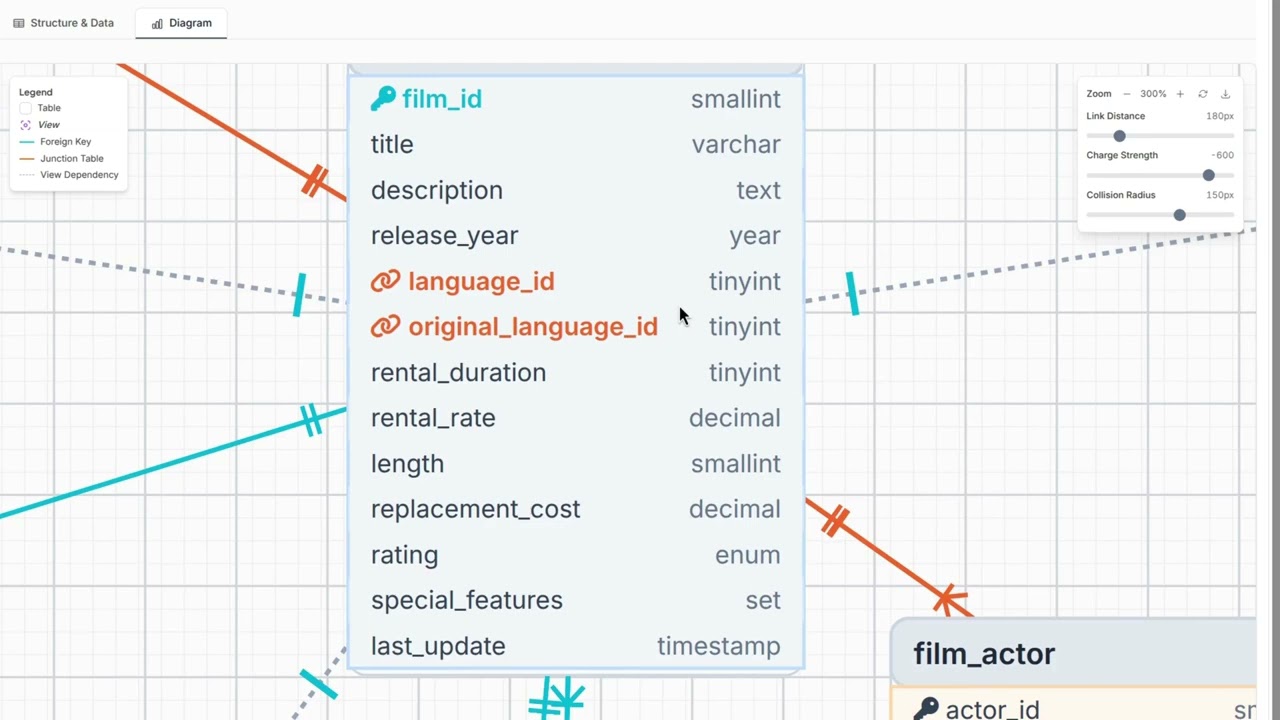
- Tables — the table name and every column with its type. A key icon marks the primary key, a link icon a foreign key.
- Views — dashed border and italic name.
- Schemas — when a database has more than one schema, each gets a frame of its own colour. Foreign keys that cross schemas are drawn between the frames.
Relationships
- One line per foreign key, with N at the referencing column and 1 at the key it references. A table that references itself loops back to itself.
- Many-to-many relationships show as the junction table between the two, with N on both of
its keys —
film_actorbetweenfilmandactor. There is no separate line fromfilmtoactor. - View dependencies — dashed lines from a view to the tables it reads. They stay hidden until you select the view or tick View links, because on a real schema they are most of the clutter.
Layout
Tables joined by foreign keys are laid out automatically, in layers from left to right. Tables joined to nothing are placed in rows beside them, in name order. With several schemas, each schema's tables are kept together.
- Drag a table to move it; its schema frame follows.
- Auto layout lays the diagram out again and undoes any tables you moved.
Selecting a table
- Click a table — it is selected and its relationships stand out:
- the selected table gets a blue border and header;
- the tables it is joined to get a red border;
- the columns that join them are highlighted;
- its lines turn blue and run, and everything else fades.
- Click empty space — clears the selection.
Moving around
- Pan — scroll with the mouse wheel or trackpad, or drag empty space.
- Zoom — Ctrl+scroll, or pinch on a trackpad.
The toolbar at the bottom of the diagram:
| Control | What it does |
|---|---|
| Fit | Fits the whole diagram into the view |
− / + | Zoom out / zoom in. The percentage shows the current zoom, from 10% to 200% |
| Auto layout | Lays the diagram out again |
| View links | Shows the dependency lines of every view, not only the selected one |
Export
PNG and SVG in the top-right corner export the whole diagram, not only the part in view. The file is named after the database and the time, so a new export never replaces an old one.
Export is part of PRO. Without it, the buttons open This is a PRO feature.
| Format | Best for |
|---|---|
| SVG | Web use, scaling without quality loss, editing in Figma or Inkscape |
| PNG | Presentations, embedding in documents |
Troubleshooting
| Issue | Solution |
|---|---|
| Tables have no lines between them | The diagram draws declared foreign keys only. MySQL MyISAM tables, or a schema that enforces its relations in application code, have none to draw |
| Lines from a view are missing | Select the view, or tick View links |
| Can't see the whole diagram | Click Fit |
| A table you moved is in the way | Click Auto layout |
Related docs
- Navigator and Object Browsing — Connection tree, database overview
- Examining Table Structure — Columns, keys, indexes, DDL
- SQL Console — Direct and file-aware SQL