Neon PostgreSQL Guide
Use this page when your PostgreSQL source or target is hosted in Neon.
This guide keeps the Neon-specific parts of the setup in one place:
- project and branch connection details
- required SSL behavior
- Neon logical replication enablement for CDC source workflows
For the core workflow split, use:
Base setup
- Open the Neon Console.
- Select the project and branch that DBConvert Streams should use.
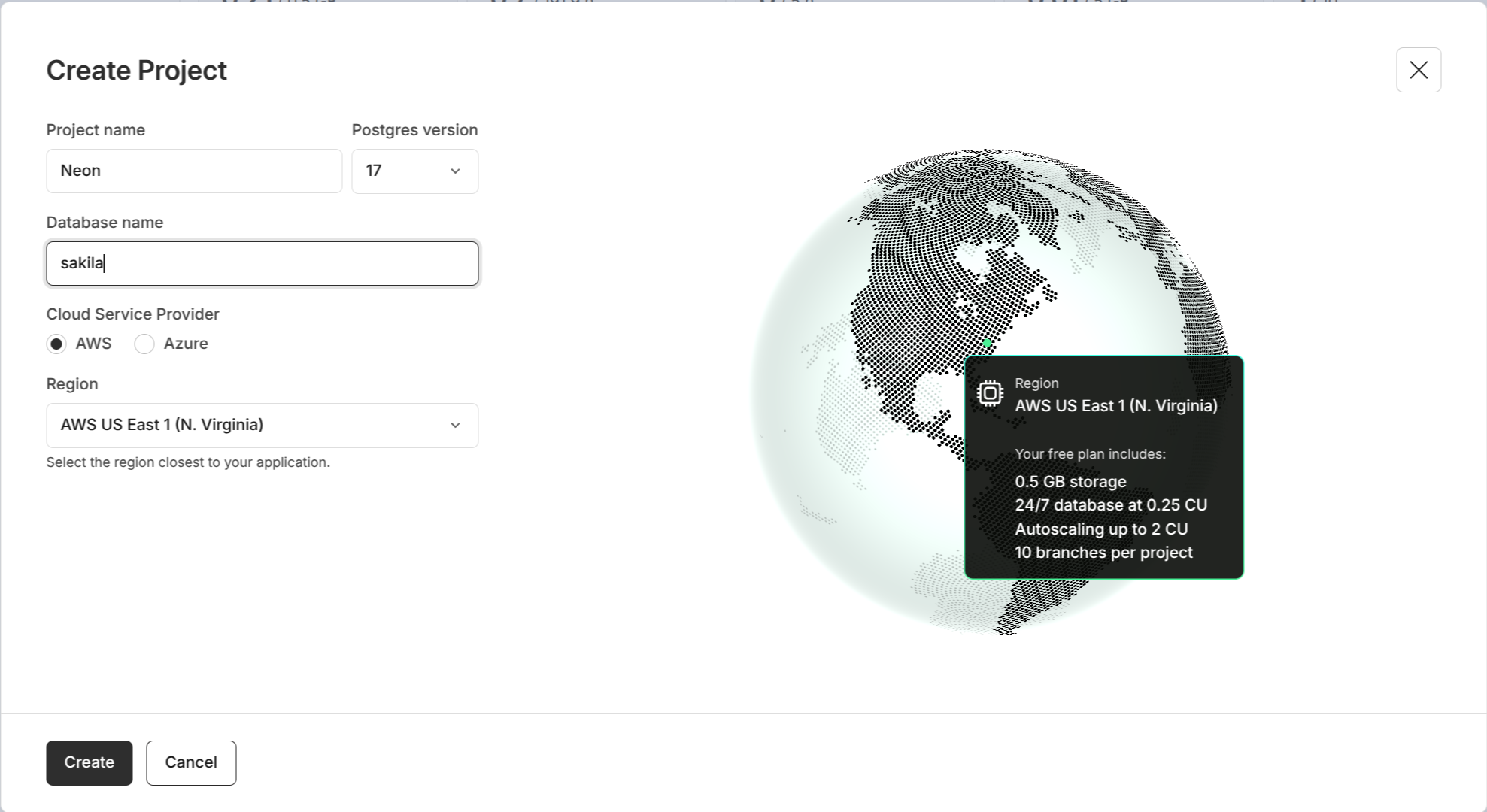
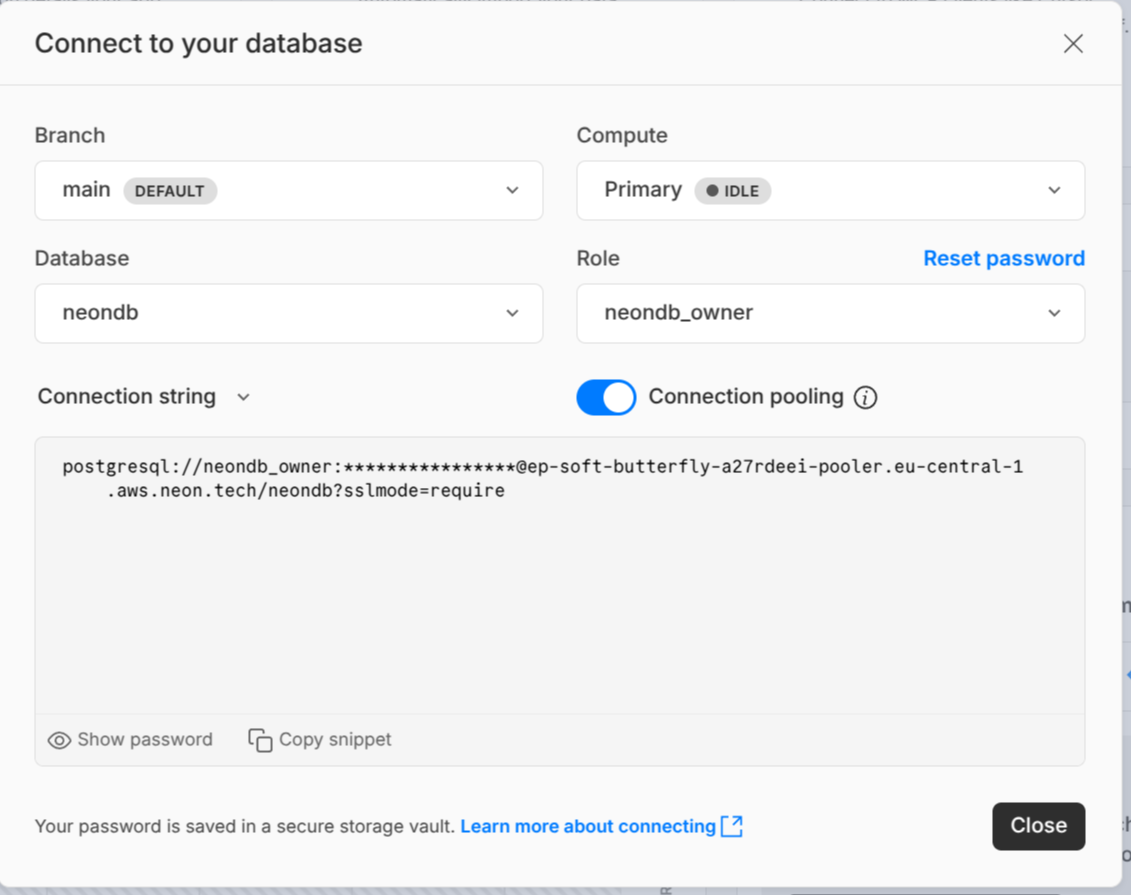
- Copy the PostgreSQL connection details.
- Confirm the DBConvert Streams deployment can reach the Neon endpoint on port
5432.
Typical connection pattern:
postgres://user:[email protected]/dbname?sslmode=require
In DBConvert Streams, use the endpoint host, port 5432, username, password, database, and set SSL mode to require.
Pasting the connection string into Quick fill populates the fields for you.
SSL requirements
Neon connections are SSL-oriented by default. Treat TLS as required unless your Neon setup explicitly documents something different.
In practice:
- enable SSL/TLS in the DBConvert Streams connection
- use a verification mode that matches your certificate policy
- test the connection before creating a stream
Open the SSL tab and set SSL Mode to Require. No certificate files are needed for a
standard Neon connection.
CDC source preparation
If Neon is only a Load source or a target, the base PostgreSQL connection setup is enough.
If Neon is the CDC source, you must also enable logical replication in Neon first.
Typical flow:
- Open the Neon project settings.
- Enable logical replication for the project or branch.
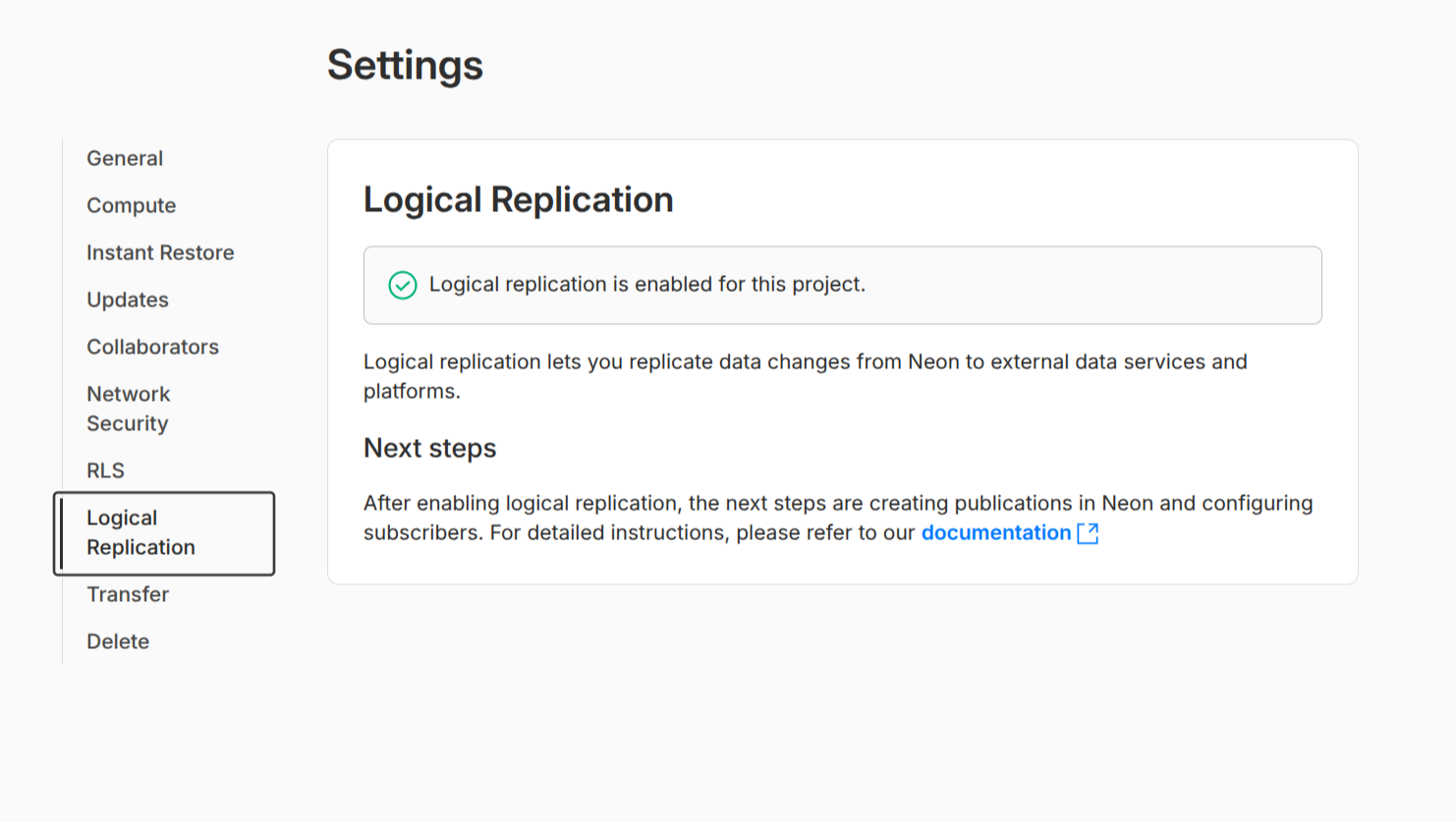
- Confirm the chosen user has the privileges required by the PostgreSQL CDC workflow.
- Then complete the remaining steps in PostgreSQL CDC Source Configuration.
After enabling logical replication, verify:
SELECT name, setting
FROM pg_settings
WHERE name IN (
  'wal_level',
  'max_replication_slots',
  'max_wal_senders'
);
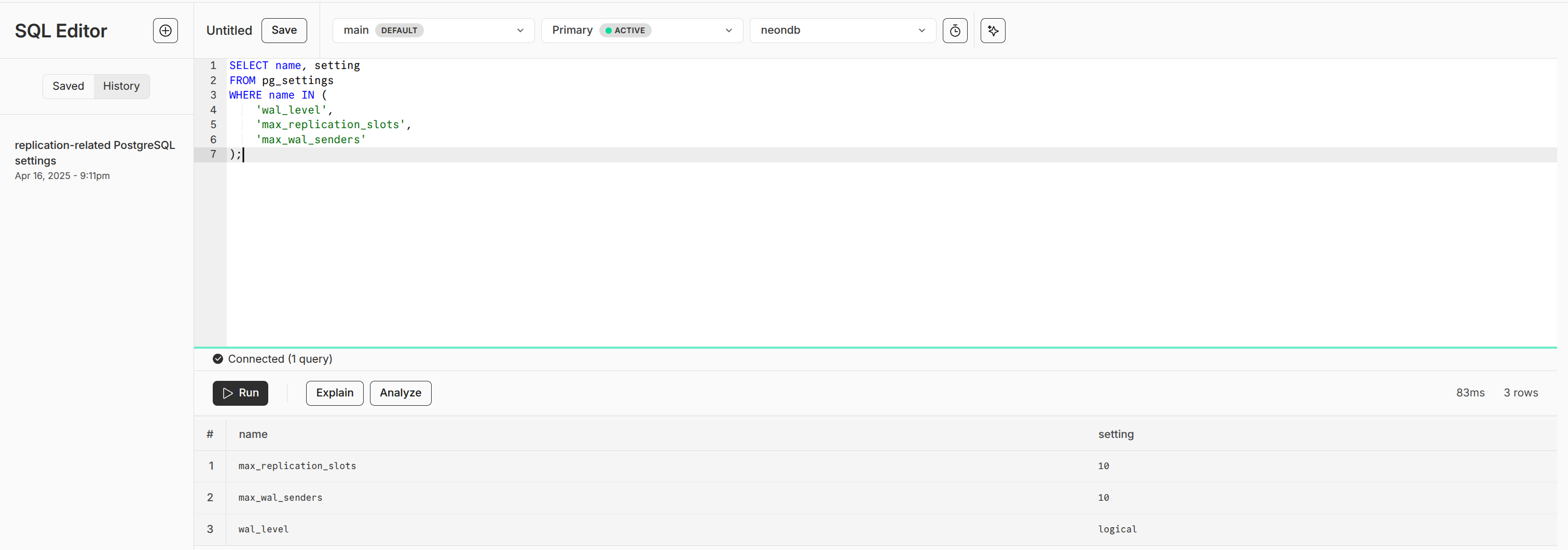
DBConvert Streams reports the same state in its own UI. Open the connection in
Data Explorer — the CDC readiness panel shows wal_level,
replication slots and WAL senders, and the connection carries a Neon badge.
Create the CDC stream
With logical replication enabled and the connection tested, the remaining steps happen in DBConvert Streams:
- Create a new stream and select the Neon connection as the source.
- On the Structure and Data step, set the Data Transfer Mode to Stream (Change Data Capture). If the option is disabled,
wal_levelis stillreplica— return to CDC source preparation. - Choose which Capture Events to replicate and select the tables.
- Leave Initial Load + CDC selected to copy existing rows before change capture begins. Clear it if the stream should carry only changes made after it starts.
- Under Write mode, use Upsert — it matches rows by primary key, so replayed events do not duplicate data.
- Select the target connection and start the stream.
You do not create these yourself. On the first start, DBConvert Streams creates a publication
covering exactly the tables you selected, and a replication slot. Each stream gets its own pair,
both named dbconvert_<stream config id>. Deleting the stream drops them.
Neon keeps compute active while a replication slot has a connected consumer, so a running CDC stream prevents scale to zero. Budget for that before leaving a stream running against a Neon source.
Validation checklist
- Test the Neon connection from the Data Explorer sidebar (right-click → Test connection) or from the connection editor. If TLS fails, confirm SSL mode is set to
require— Neon does not allow unencrypted connections. - Open it in Data Explorer to confirm visible schemas and tables.
- If the workflow uses CDC, run
SHOW wal_leveland confirm it returnslogical. If it showsreplica, logical replication is not enabled in the Neon project settings. - After Neon branch resets, compute restarts, or project-level changes, re-test the connection — Neon can reset replication state on these events.