Standalone MCP server
Everything else in this section connects an AI client to a DBConvert Streams workspace — your saved connections, read through the app you already run. This page is the other shape: the same server, given connection strings directly, with no DBConvert Streams installation behind it. No workspace database, no keyring, no services to start.
It is the same binary and the same tools. What changes is where the sources come from: instead of reading your workspace, the server serves exactly the sources you hand it at startup.
Three ways to run it. Same server each time — pick by what your client expects.
| Pick it when | ||
|---|---|---|
npx | your client launches a command, and you are on Linux or Windows | npx @dbconvert/stream-mcp "postgres://…" |
| Claude extension | you use Claude Desktop | drop the .mcpb into Settings → Extensions |
| Docker | macOS or ARM, or you would rather not touch Node | docker run -i --rm slotix/stream-mcp "postgres://…" |
Cursor and VS Code can set the npx form up for you:
Both ask before installing anything. VS Code opens the server's page — the button does not install it, the Install on that page does:
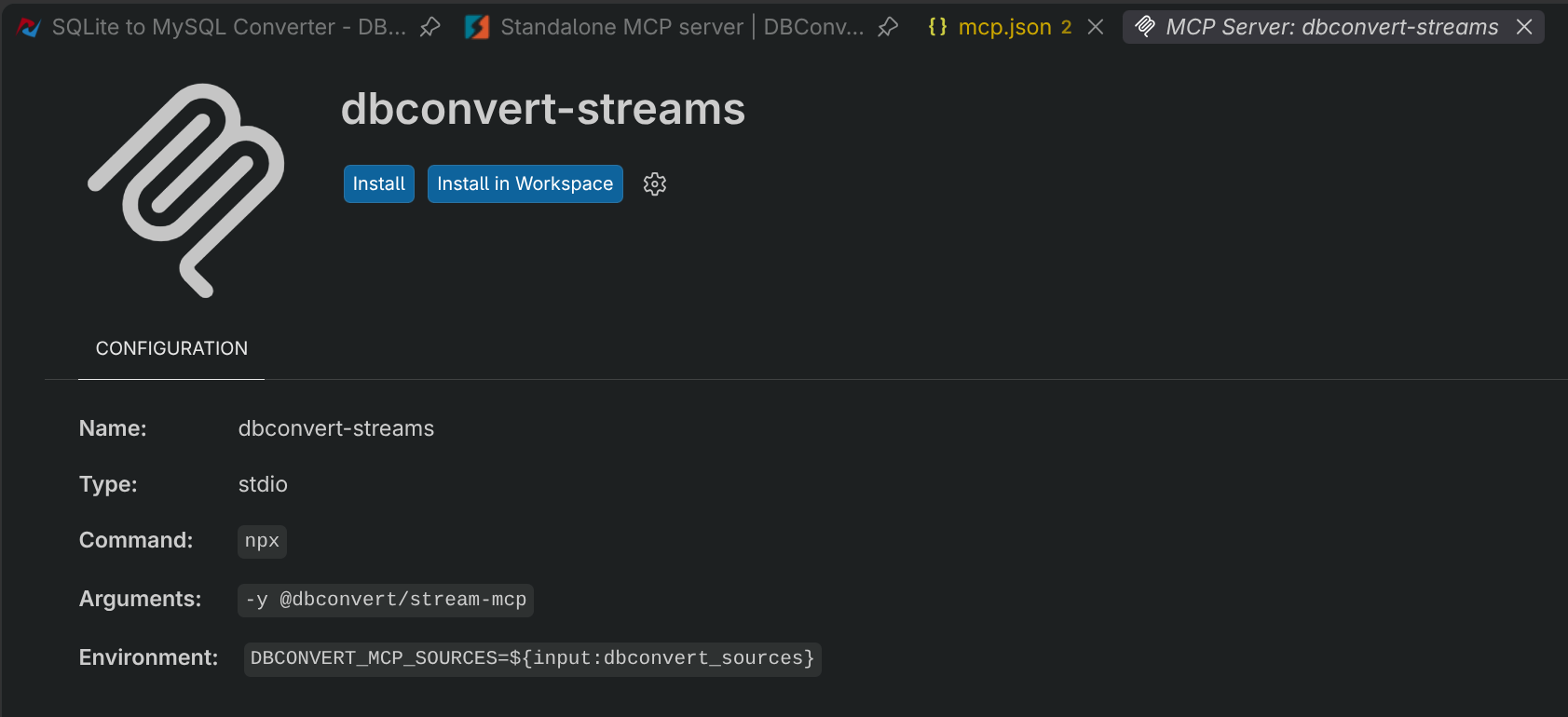
Then it prompts for the sources. Several go in that one field, separated by spaces:

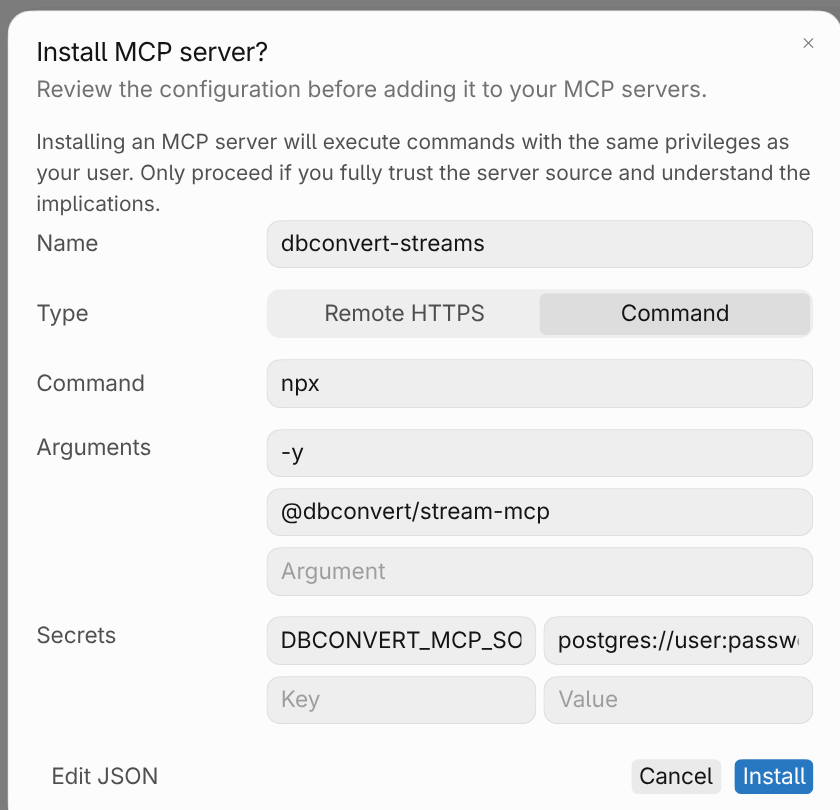
Cursor asks differently: it shows the whole configuration in a dialog, and the
sources sit in a DBCONVERT_MCP_SOURCES field you edit right there.
What counts as a source
Four kinds, and they mix freely:
| Kind | Write it as |
|---|---|
| PostgreSQL | postgres://user:password@host:5432/dbname |
| MySQL | mysql://user:password@host:3306/dbname |
| S3 or compatible | s3://bucket/folder?region=us-east-1 |
| A folder of Parquet, CSV or JSON | /home/you/data |
Put a name in front — shop=postgres://… — and that is what the source is
called in chat. Without one it takes the name of the database, bucket or folder.
Listing several is the point: one question can join across them — a live PostgreSQL table against a Parquet file in S3, or a CSV a colleague sent against the table it was exported from. A worked example.
Option 1 — npx, no install
The shortest path, and the one most MCP clients already expect:
npx @dbconvert/stream-mcp "shop=postgres://user:password@host:5432/shop"
Nothing is installed permanently. The package itself is a few kilobytes: it
fetches the server binary for your platform from the
GitHub release,
checks it against a hash that shipped inside the package, and caches it under
~/.cache/dbconvert-streams/ — so the download happens once.
In a client's configuration:
{
  "mcpServers": {
    "dbconvert": {
      "command": "npx",
      "args": ["-y", "@dbconvert/stream-mcp",
               "shop=postgres://user:password@host:5432/shop"]
    }
  }
}
Linux and Windows on x64. On macOS, or on ARM, use the container below — it is the same server.
Option 2 — the Claude extension
Download dbconvert-streams-<version>.mcpb from
Releases and drop
it into Claude → Settings → Extensions. Three steps, not one: the file
opens a description page, Install puts the extension in, and Configure
opens the form where the sources go.
Claude warns that an extension it has not verified gets access to your computer. That notice appears for every third-party extension, ours included.
One file covers Windows and Linux — the bundle carries a binary for each and picks the right one on install. macOS is planned for a later release.
.mcpb is Anthropic's bundle format
for local servers, adopted into MCP itself in late 2025. Today the clients that
install a bundle are Claude Desktop, Claude Code and MCP for Windows; anything
else — Cursor, VS Code, Codex — takes the npx or Docker form above.
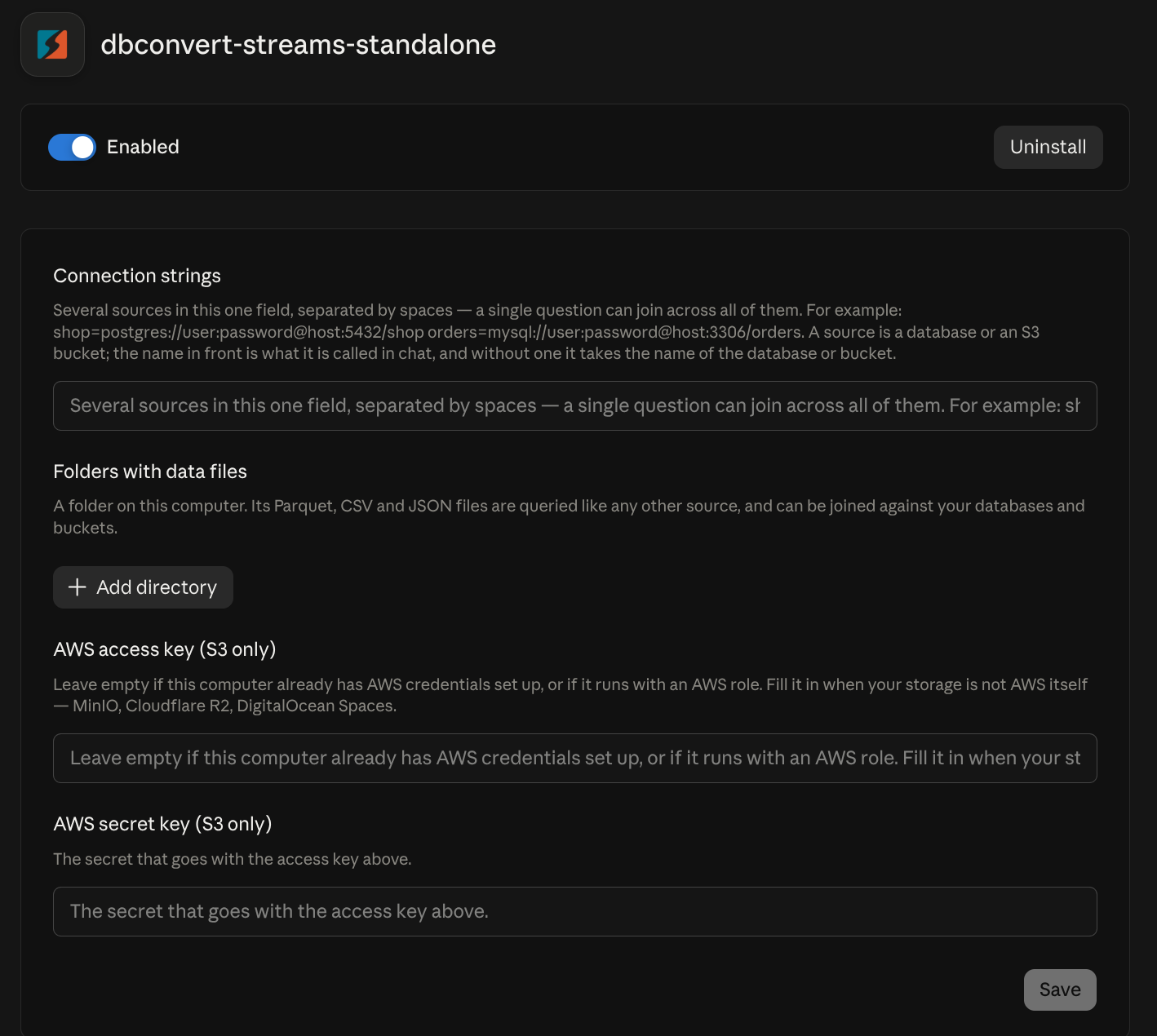
Two fields matter:
- Connection strings — several in the one field, separated by spaces. The
form renders it as a single input, so this is the only way to give it more
than one:
shop=postgres://user:password@host:5432/shop orders=mysql://user:password@host:3306/orders - Folders with data files — use + Add directory. A folder path may contain spaces; it is picked, not typed, so nothing is ambiguous.
The two AWS fields matter only for an S3 source on storage that is not AWS itself — MinIO, Cloudflare R2, DigitalOcean Spaces.
Option 3 — the Docker image
Any MCP client that can launch a server through Docker can run this, which is most of them:
docker run -i --rm slotix/stream-mcp postgres://user:password@host:5432/dbname
Cursor and VS Code can skip the config file entirely — though the
one-click links above install the npx form, which
needs no Docker. Use these if you would rather the client ran the container:
-iis required — MCP speaks JSON-RPC over standard input, so the container needs its stdin held open.--rmis housekeeping — the server keeps no state between runs.-e DBCONVERT_MCP_SOURCES="…"is the alternative to trailing arguments, and is often tidier in a compose file or a client's Docker config.
Several sources are several arguments:
docker run -i --rm slotix/stream-mcp \
  shop=postgres://user:password@host:5432/shop \
  orders=mysql://user:password@host:3306/orders \
  lake=s3://analytics/exports?region=eu-central-1
A folder has to be mounted before it can be read, and the path you pass is the path inside the container:
docker run -i --rm -v /home/you/data:/data slotix/stream-mcp /data
S3 credentials come from the standard AWS variables, never from the URL, so they stay out of your shell history and out of the client's config file:
docker run -i --rm \
  -e AWS_ACCESS_KEY_ID -e AWS_SECRET_ACCESS_KEY \
  slotix/stream-mcp "s3://analytics/exports?region=eu-central-1"
Reaching a database on your own machine
A container has its own network. localhost inside it means the container, not
your computer, so a database running on the host needs one of:
--network hoston Linux, then127.0.0.1works as usual;host.docker.internalas the host name on macOS and Windows Docker Desktop.
A database on another server needs neither — use its address as you normally would.
Registering it with a client
In a client's MCP configuration the same command becomes:
{
  "mcpServers": {
    "dbconvert": {
      "command": "docker",
      "args": ["run", "-i", "--rm", "slotix/stream-mcp",
               "shop=postgres://user:password@host:5432/shop"]
    }
  }
}
The server is listed in the MCP registry
as com.dbconvert/streams, with both the extension and the image, so clients
that install from the registry can find it without this file.
Adding sources after the first one
Sources reach the server two ways: as arguments, or as one
DBCONVERT_MCP_SOURCES variable holding them all, separated by spaces.
In a config file you edit yourself, use arguments — one source per line, and
a long list stays readable. Cursor and VS Code keep the server entry in
mcp.json (~/.cursor/mcp.json, or MCP: Open User Configuration in VS
Code); adding a source means adding a line:
"dbconvert-streams": {
  "command": "npx",
  "args": [
    "-y", "@dbconvert/stream-mcp",
    "shop=postgres://user:password@host:5432/shop",
    "orders=mysql://user:password@host:3306/orders",
    "/home/you/data"
  ],
  "env": { "AWS_ACCESS_KEY_ID": "…", "AWS_SECRET_ACCESS_KEY": "…" },
  "type": "stdio"
}
The variable exists for the cases where an argument cannot go. Environment variables are strings — the OS has no other kind — so every source lives in one line, which is why the one-click buttons use it and a hand-written config usually should not:
"env": { "DBCONVERT_MCP_SOURCES": "shop=postgres://user:password@host:5432/shop /home/you/data" }
VS Code fills that variable from its install prompt, and a container takes it as
-e. If both are present the arguments win, and the server says so in its log.
Two things about that prompt are worth knowing, because neither is obvious:
- The question itself lives in the
inputsarray of yourmcp.json, and VS Code keeps it there when you uninstall the server. Reinstalling reuses the old question; to get a new one, delete the entry whoseidisdbconvert_sourcesfirst. - Your answer is stored outside the file —
mcp.jsononly ever holds${input:dbconvert_sources}. VS Code does draw the stored value next to it in the editor, though. Add"password": trueto thatinputsentry if you would rather see dots than a password on screen.
Restart the server afterwards — in VS Code, MCP: List Servers → your server → Restart. The tool count should grow: a folder adds the file tools, a bucket adds the object-storage ones.
Claude Desktop does not need any of that. Its extension has a form: connection strings in one field separated by spaces, folders through a picker, and the two AWS fields. Edit them in Settings → Extensions and the change takes effect on the next chat.
A source added while the server is running is not picked up until it restarts, and a client that keeps the old process alive will keep showing the old list.
What you get, and what you don't
The tool surface follows the sources you gave it. Nothing needs enabling — and a server with no sources at all still starts, and says the list is empty.
| Give it | And you get |
|---|---|
| nothing | the two core tools, and an empty source list |
| a folder | file tools and federated queries |
| a database | catalog, inspection and query tools |
| a bucket | the object-storage tools |
What is not there, compared with a workspace-backed server: the stream tools. Stream status, run errors and stream logs describe a DBConvert Streams installation, and in standalone mode there isn't one.
The guarantees are the ones in Safety & privacy, unchanged: no tool writes, and connection details are given once, at startup, so they never travel through a tool call into the conversation or the chat history.
One honest caveat about the command line: arguments to a process are visible to
other processes on the same machine (ps, or docker inspect for a container).
On a personal machine that is your own account's processes and nobody else's; on
a shared host, prefer the extension, which stores the value in the client's own
configuration rather than an argument list you type into a shell.
Logging
Logs go to a file, never to standard output — that channel carries the protocol,
and a stray log line would corrupt it. Each way of running the server supplies a
path: the npx launcher writes beside its cache, the extension takes the path
from its manifest, and the image has its own inside the container. Run the
binary directly and it falls back to stream-mcp.log in your temp directory, so
give it somewhere better with LOG_FILE:
LOG_FILE=~/.dbconvert-streams/stream-mcp.log stream-mcp postgres://…
Inside a container that log is written to /app/logs, which --rm throws away
with the container. Mount the folder to keep it:
docker run -i --rm -v ./logs:/app/logs slotix/stream-mcp postgres://…
Writes are buffered and flushed once a second, so a server that is killed in its first second leaves nothing behind — worth knowing before concluding that a crashing container logs nothing.